In this article
Counselors: Creating and Assigning Tasks
 Updated
by Customer Support
Updated
by Customer Support
A Task is a specific action you ask someone to complete: reviewing a document, watching a video, filling out a form, or taking a step in Scoir like adding colleges to their list. With Tasks, you can share resources, collect information, and track progress.
Note: Scoir is always evolving! Some newer features may not appear in this video, but it should still be close enough for you to follow along.
How do Tasks Work?
A Task is a specific action you assign to a student, a parent, or both. Tasks can be as simple as asking students to follow colleges on Scoir, or as involved as having them fill out a Brag Sheet form so you can learn more about their goals and achievements. You can attach documents, link videos, and include a Form to collect responses directly in Scoir.
Once you assign a Task, it shows up on the recipient's dashboard for them to complete. You can track progress and send reminders all from one place.
Tasks vs. Plans: Which Should You Use?
Before creating a Task, it's worth thinking about whether it should stand alone or live inside a Plan.
- Standalone Tasks work best for one-off activities or anything you need to send to parents. You create the Task, assign it to whoever needs it, and they see it on their dashboard right away (or on the start date, if you set one).
- Plans are for students only and work better for sequences of activities that repeat year over year, like a set of tasks for every junior class. Tasks created inside a Plan get assigned automatically when you publish the Plan to a group of students, and you can reuse the whole Plan for future class years without rebuilding it from scratch.
Creating a Task
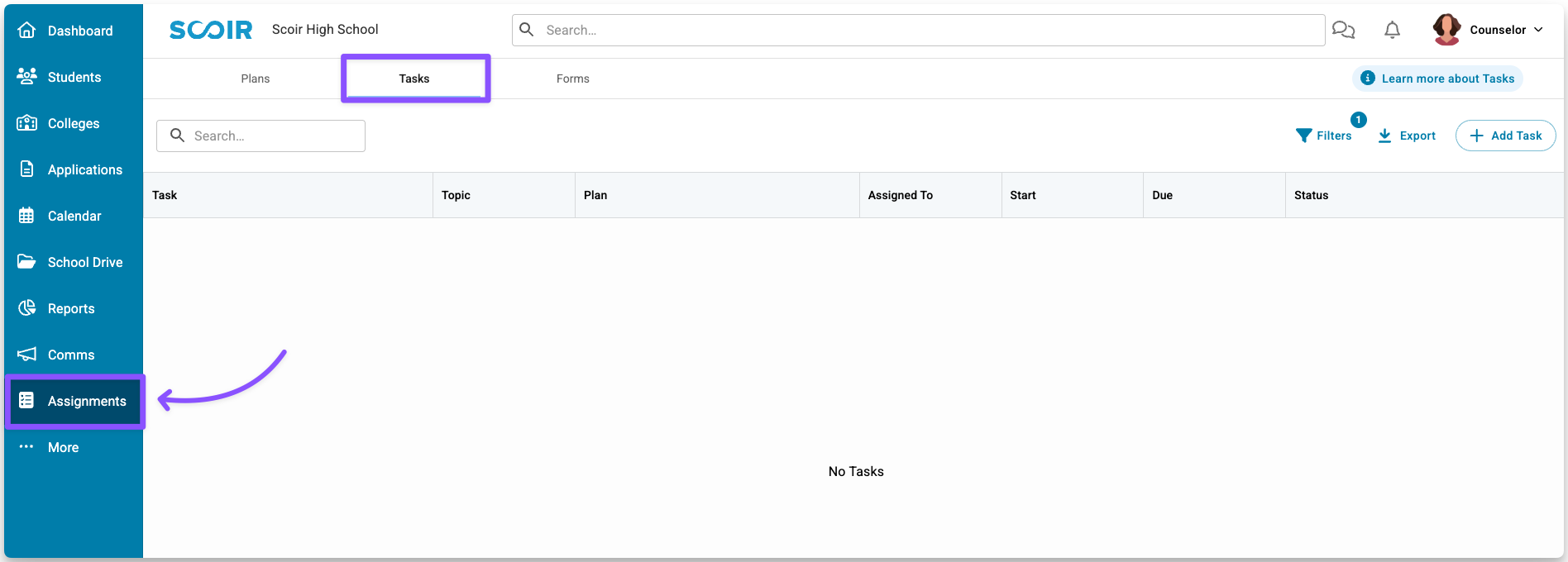
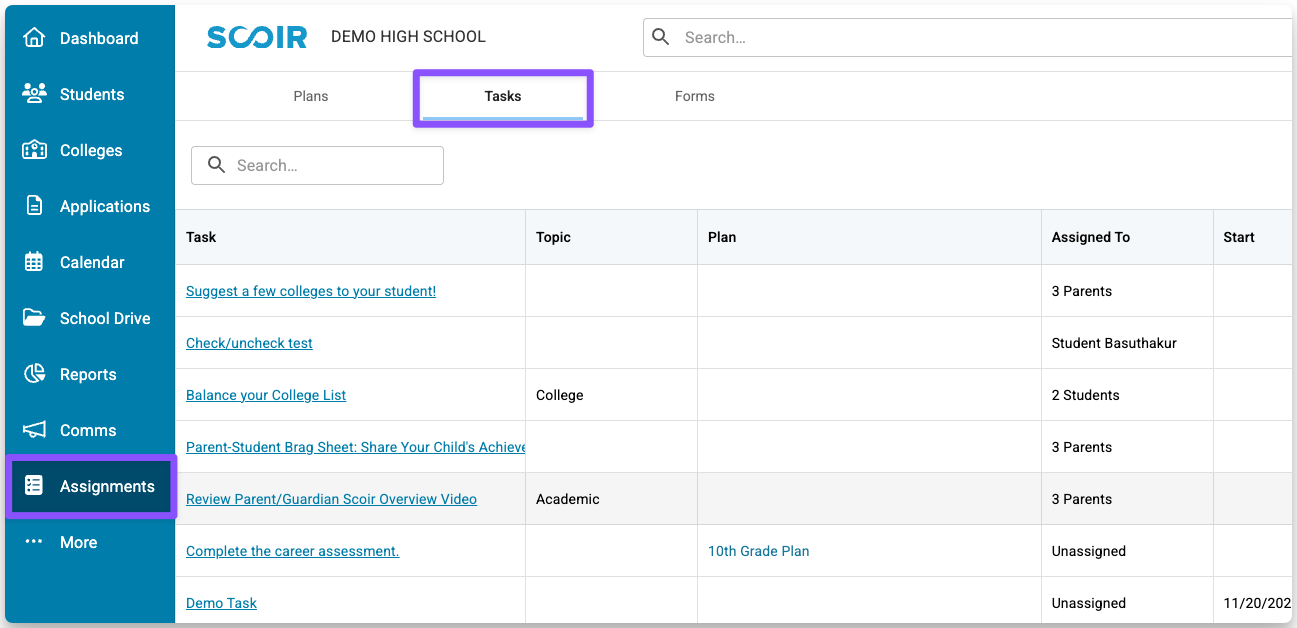
- From the left navigation menu, go to Assignments, then select the Tasks tab. This is your Task management page, where all Tasks for your school live.
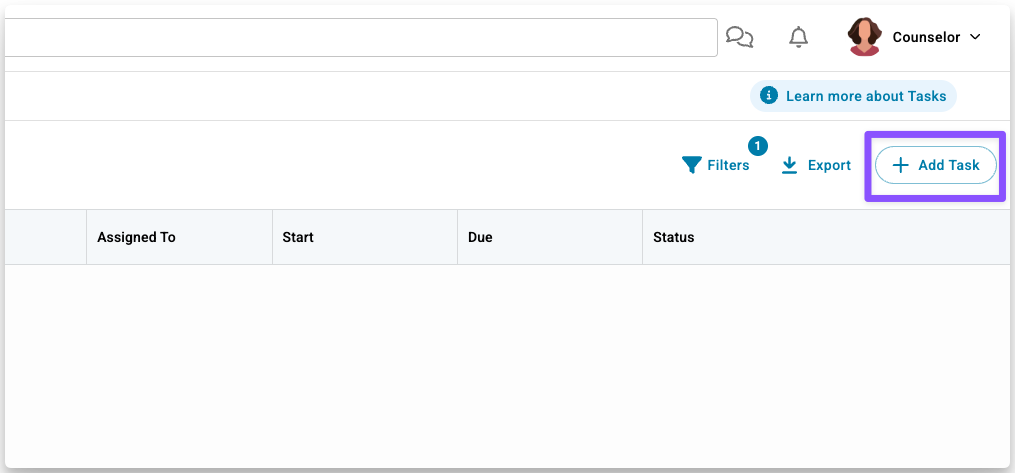
- Click +Add Task.
- In the window that appears, add a title (required) and a description (optional).
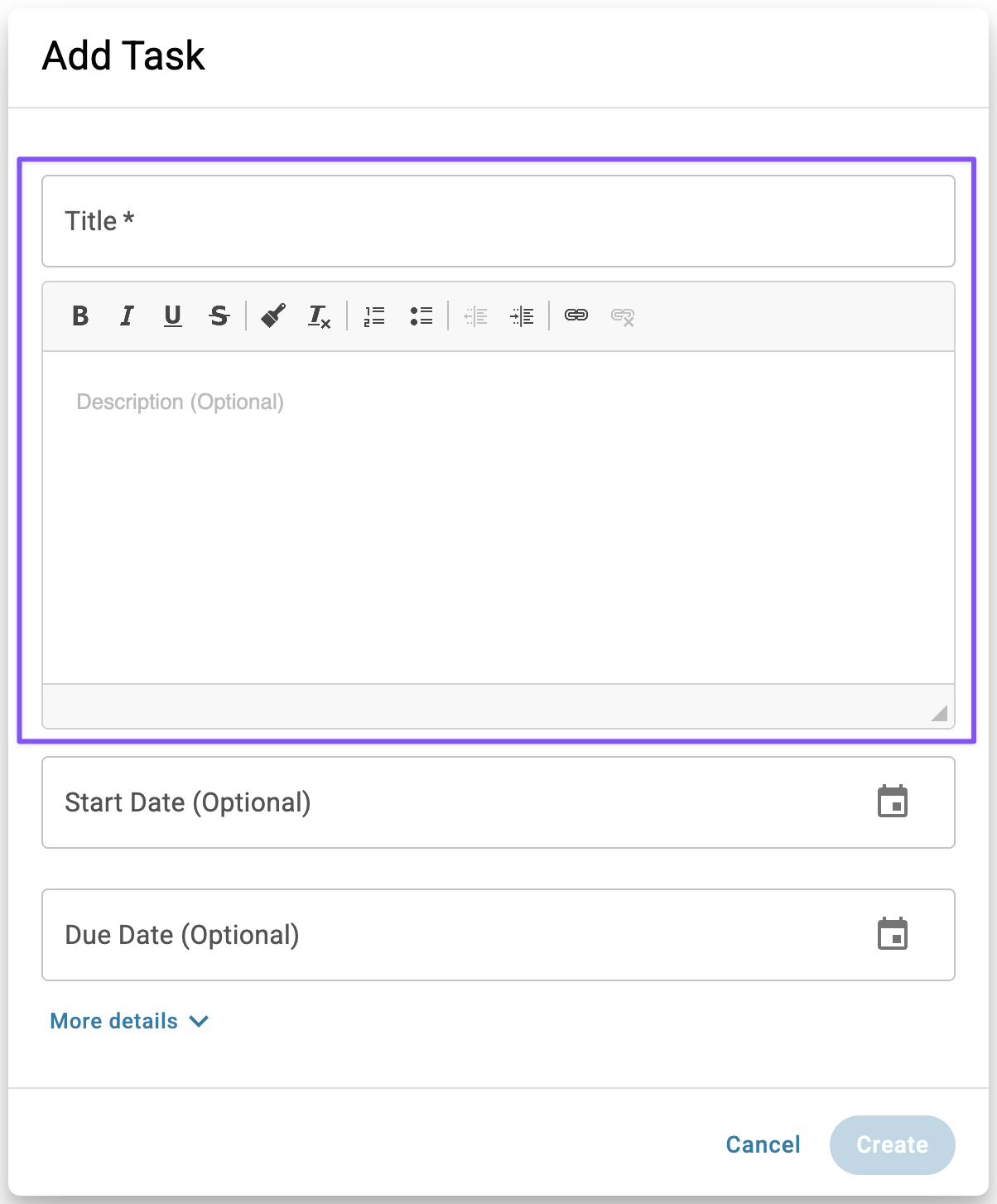
- Set a start date and due date (optional). The start date is when the Task appears on students' dashboards. The due date is when it should be completed. If the due date passes, the Task will be marked overdue, but students can still complete it.
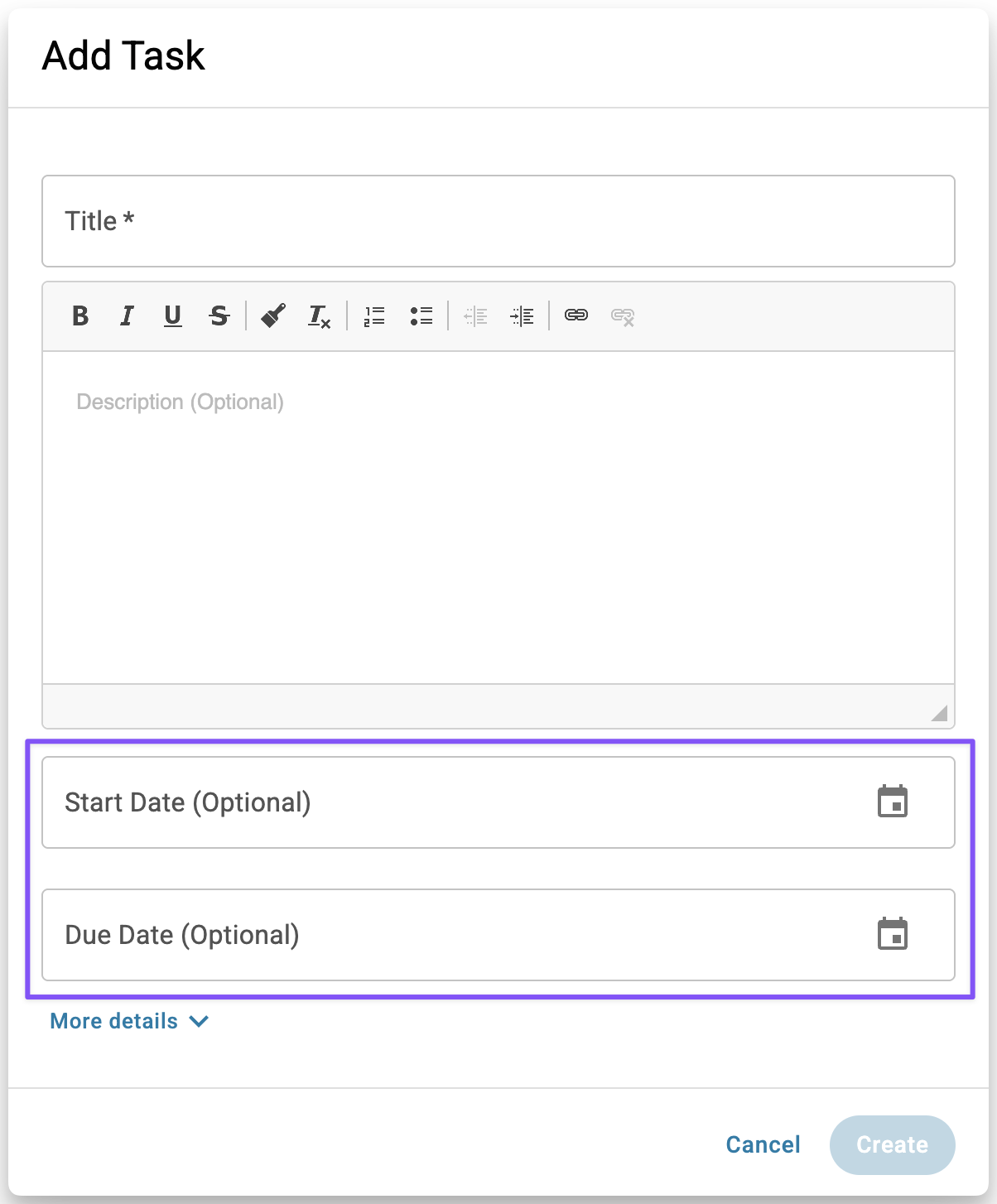
- Click More details to expand additional options to add:
- Topic — To help you organize and filter tasks, making it easier to find and report on them later. Choose an existing topic or create your own by typing it in and pressing Enter. (The topic name is not visible to students or parents on their task)
- Form — Include a Form in a Task to collect responses from students or parents/guardians. After the Task is assigned, they’ll complete the Form as part of the Task.
- Attachments (PDFs only) or video links
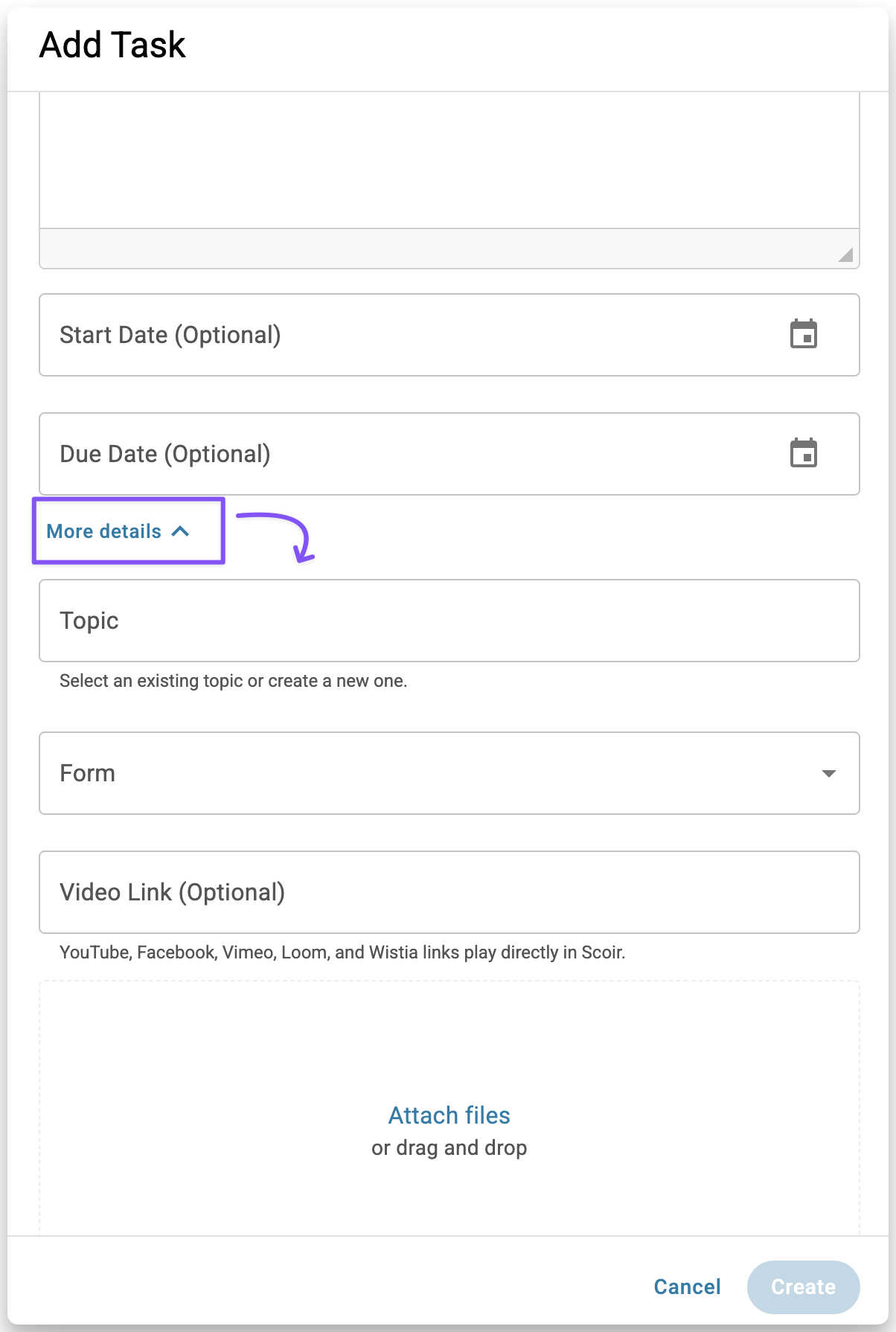 Supported video providers include: YouTube, Facebook, Twitch, SoundCloud, Streamable, Vimeo, Wistia, Mixcloud, DailyMotion, Kaltura, and Loom
Links from YouTube, Facebook, Vimeo, Loom, or Wistia will play right within Scoir.
- Click Create. Your Task will appear in the Tasks table, where you can review, edit, or assign it when you're ready.
Assigning Tasks
Creating a Task doesn't make it visible to anyone yet. You need to assign it first. When assigning, you can choose whether the Task goes to students, parents/guardians, or both. To assign a Task to parents, you’ll always do so through their student. Parents cannot be assigned Tasks directly from the Parent Roster.
Tasks are only visible to the audience they are assigned to. Students cannot see Tasks assigned to parents, and parents cannot see Tasks assigned to students.
Once assigned, the Task appears on the recipient’s Scoir dashboard. If you set a start date, it will appear when that date arrives.
Jump to:
- Assigning to students in bulk
- Assigning to parents in bulk
- Assigning to an individual student
- Assigning to an individual parent
Assigning to students in bulk
- Go to your Student Roster and select the group of students who should receive the Task. Use filters to narrow down your group, for example by class year.
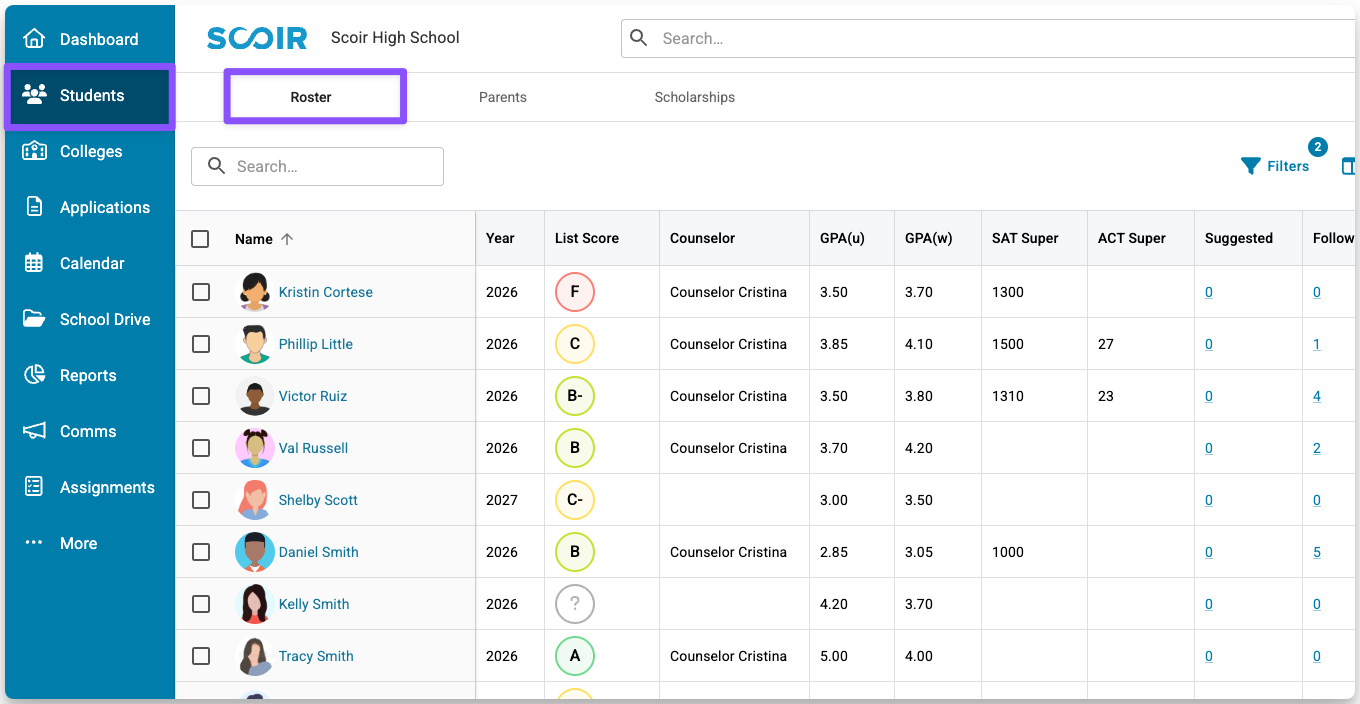
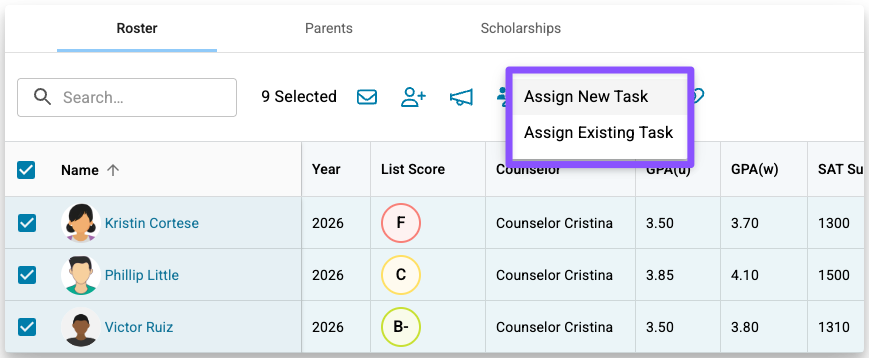
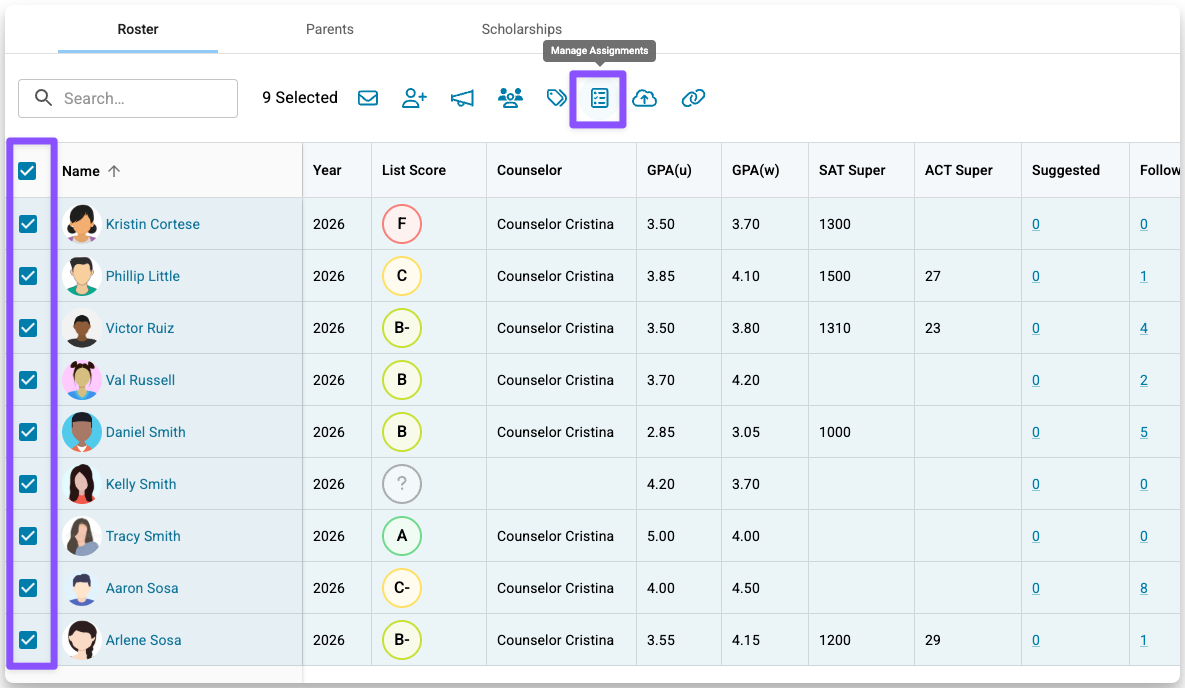
- Once you’ve selected the appropriate students, click Manage Assignments in the toolbar at the top of the page.
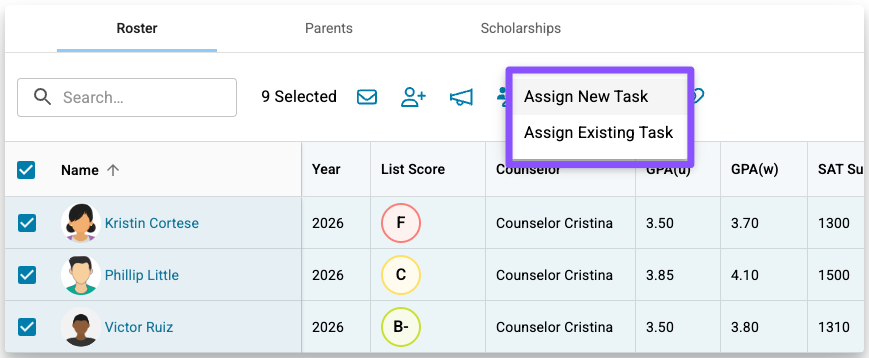
- Choose Assign New Task or Assign Existing Task.
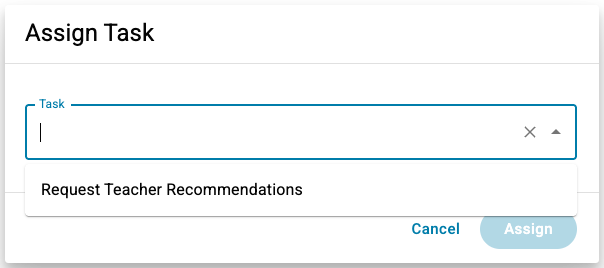
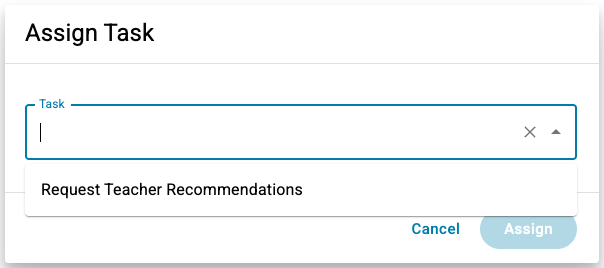
- To find an existing Task, click the Task field or start typing to search by title.
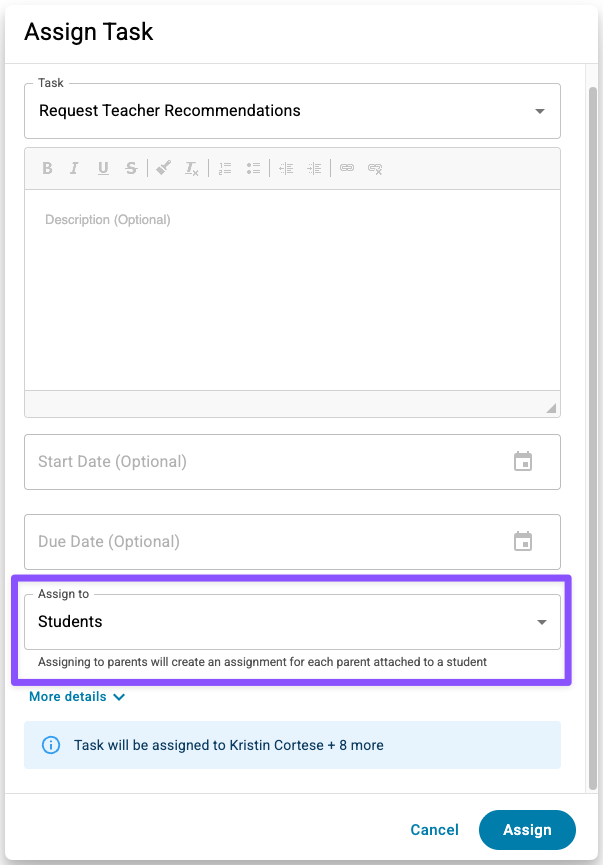
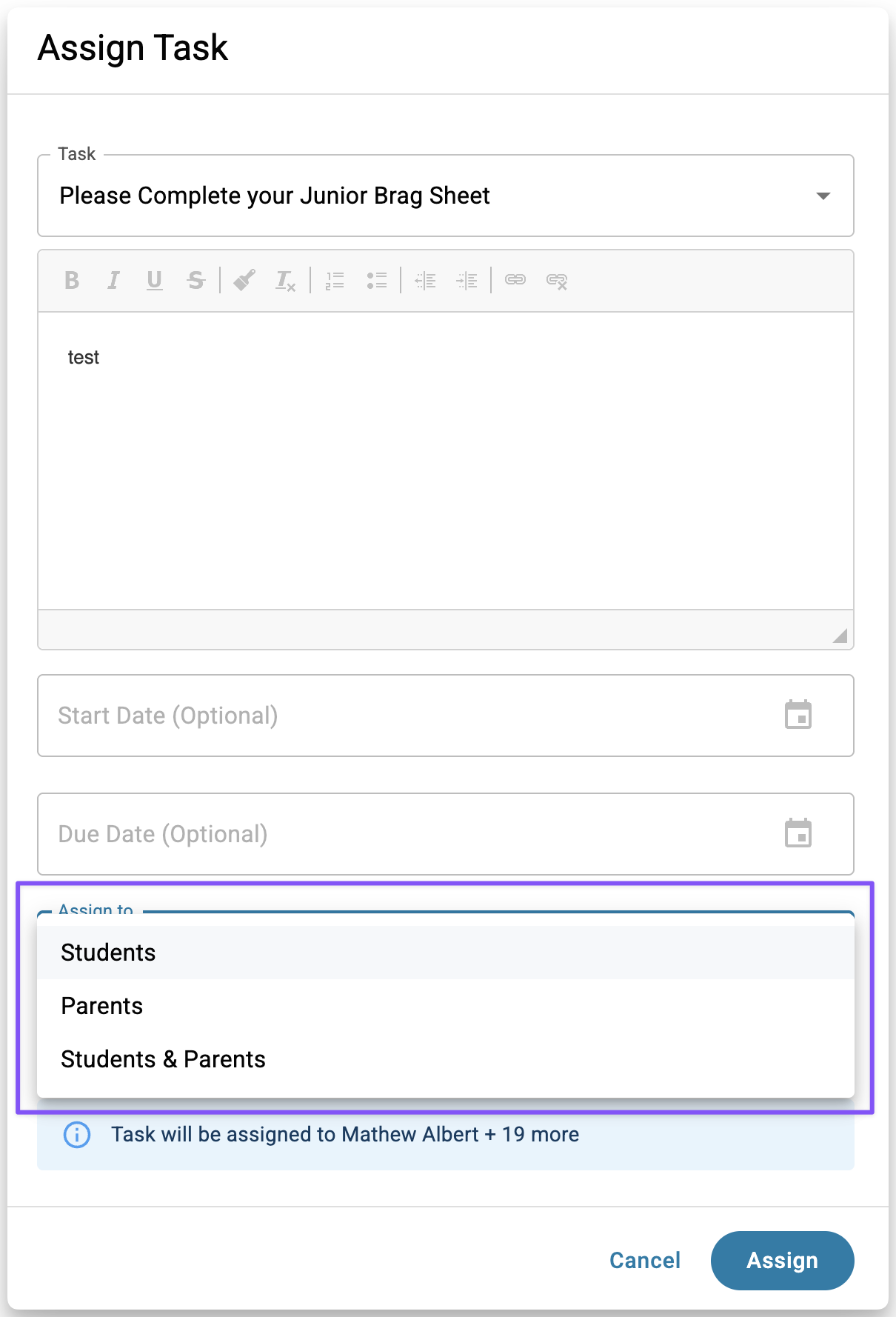
- In the Assign to dropdown, select Students.
- Click Assign.
Assigning to parents in bulk
Parents are assigned Tasks through their connection to students. To assign a Task to parents in bulk, you’ll start in the Student Roster.
- Go to your Student Roster, then select the group of students whose parents should receive the Task. For example, you might filter by Class of 2027 to assign a Task to all 2027 parents.
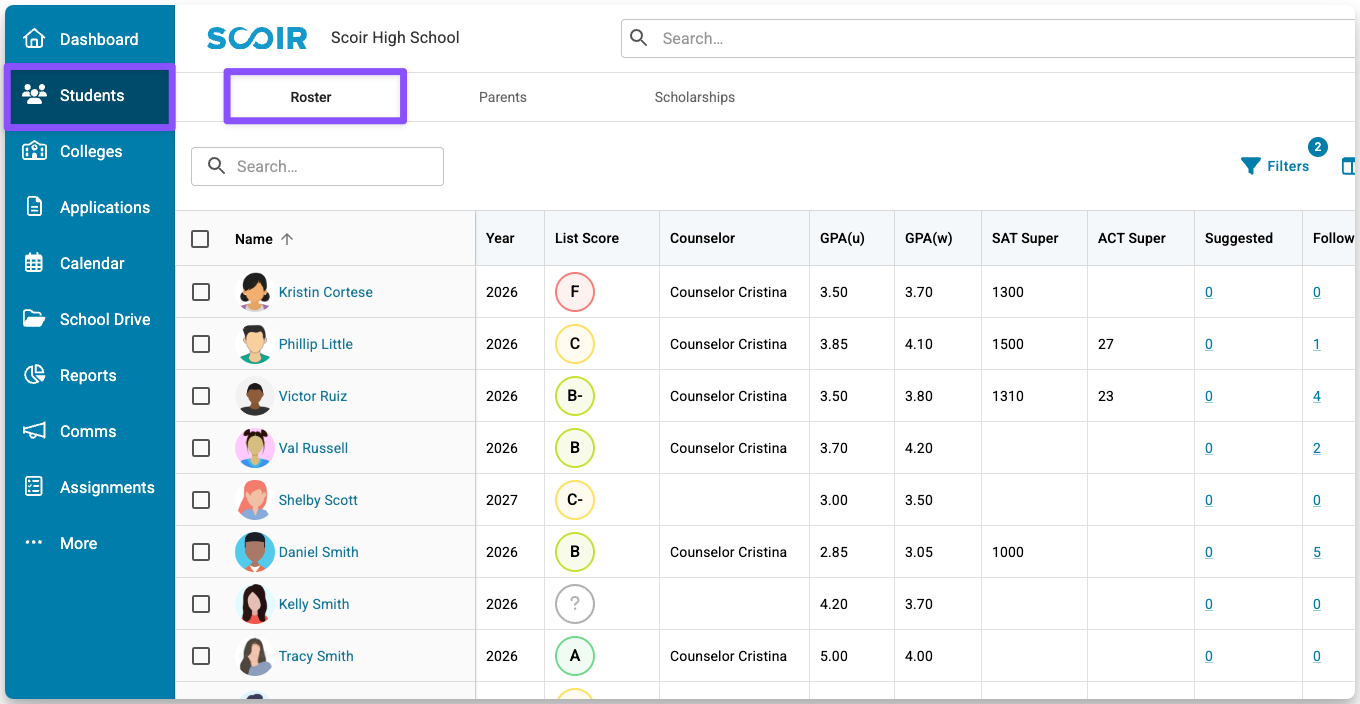
- Once you’ve selected the appropriate students, click Manage Assignments in the toolbar at the top of the page.
- From there, choose Assign Existing Task (or Assign New Task if you’re creating one).
- Select the Task you want to assign.
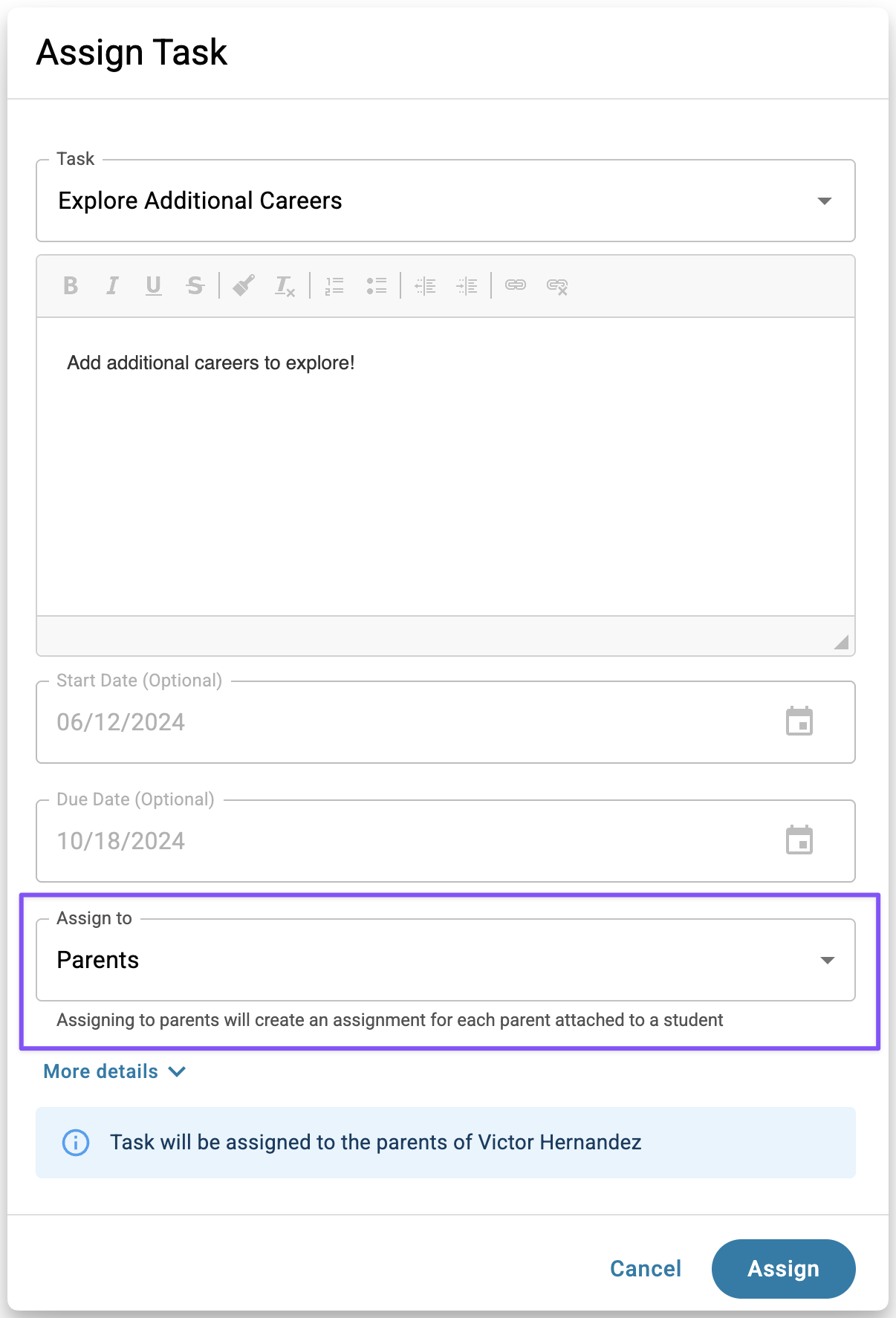
- When the Task details appear, open the Assign to dropdown and choose Parents to assign the Task only to parents or guardians.
Assigning to an individual student
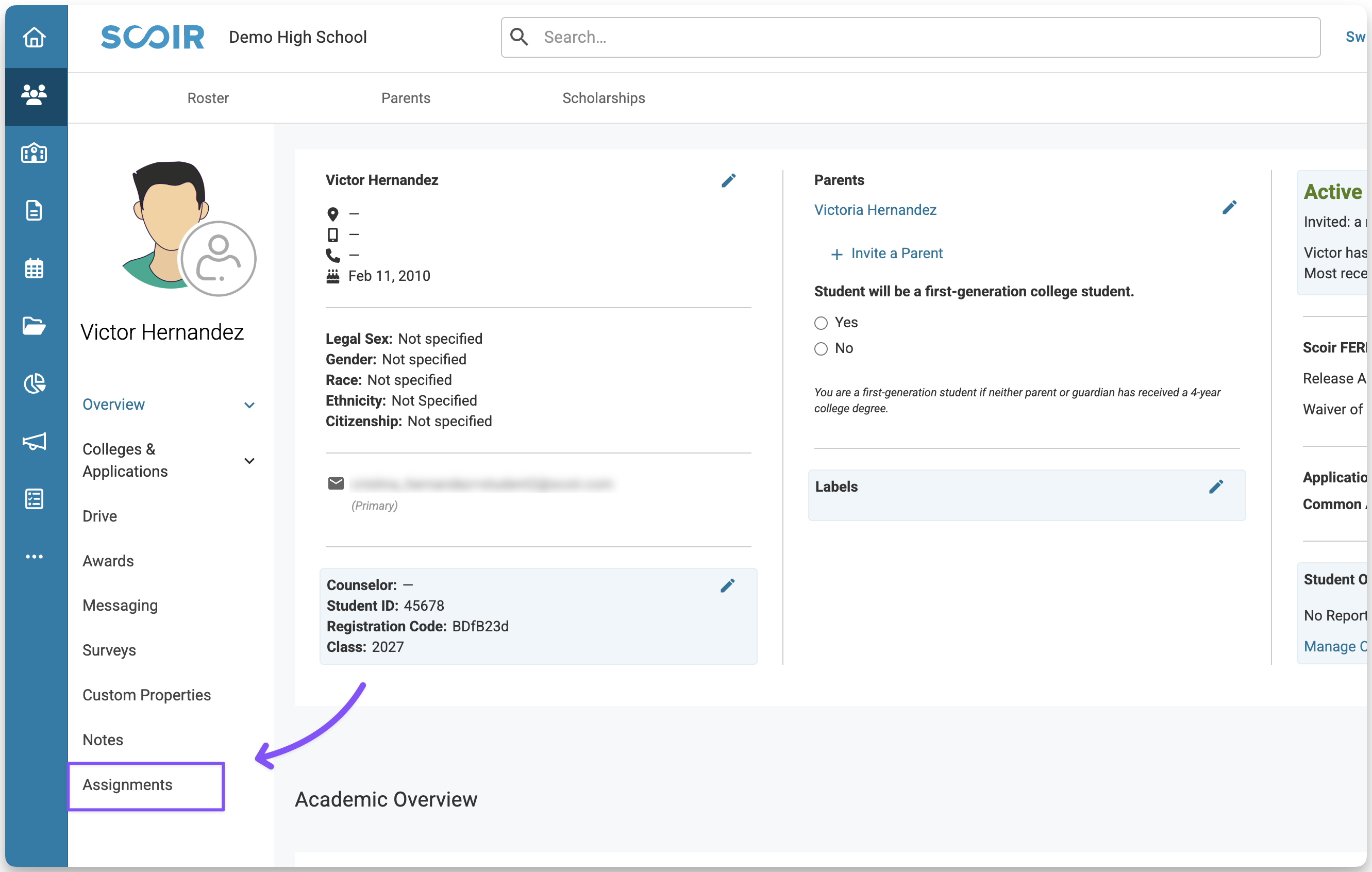
- Go to the student’s profile, then click Assignments in the left-hand menu.
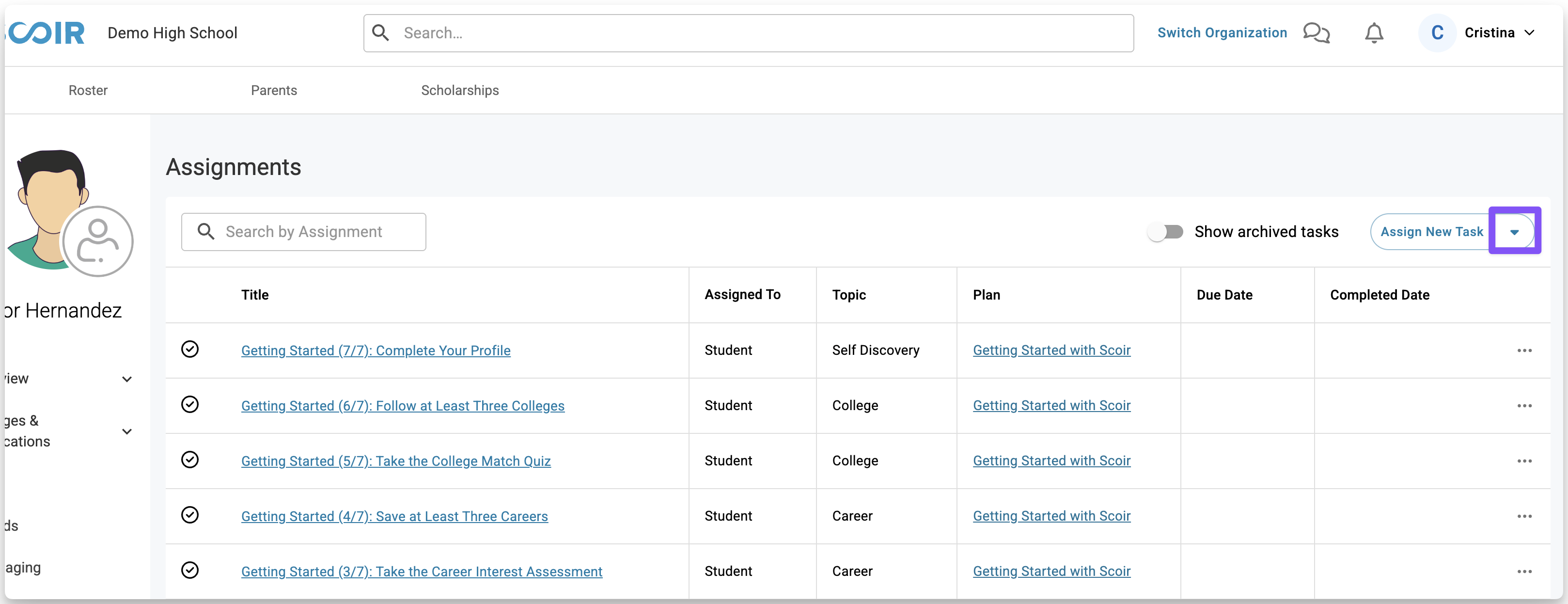
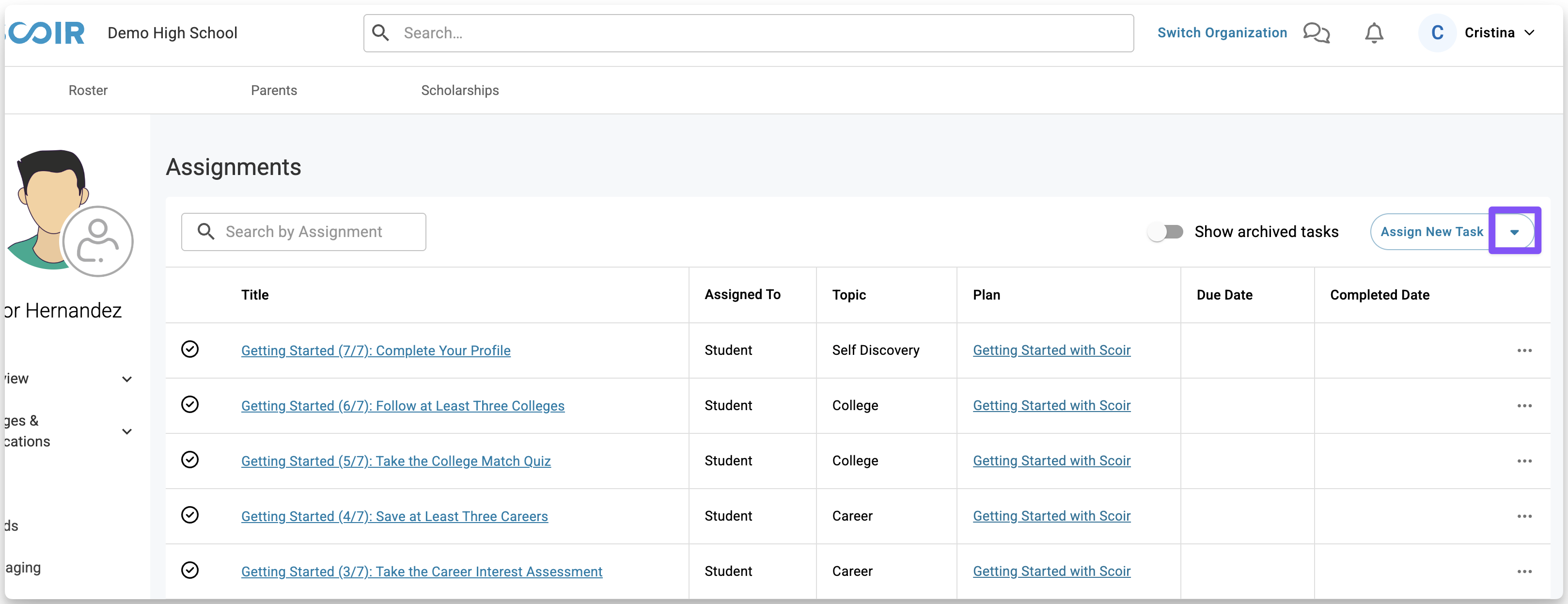
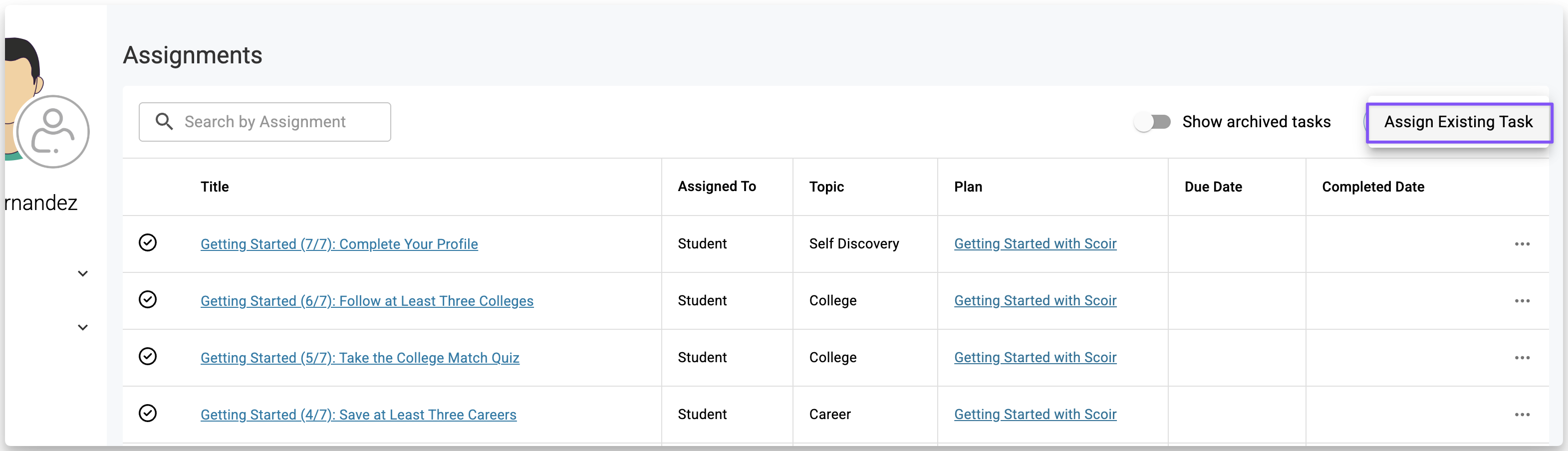
- At the top right, click the arrow next to Assign New Task, then select Assign Existing Task.
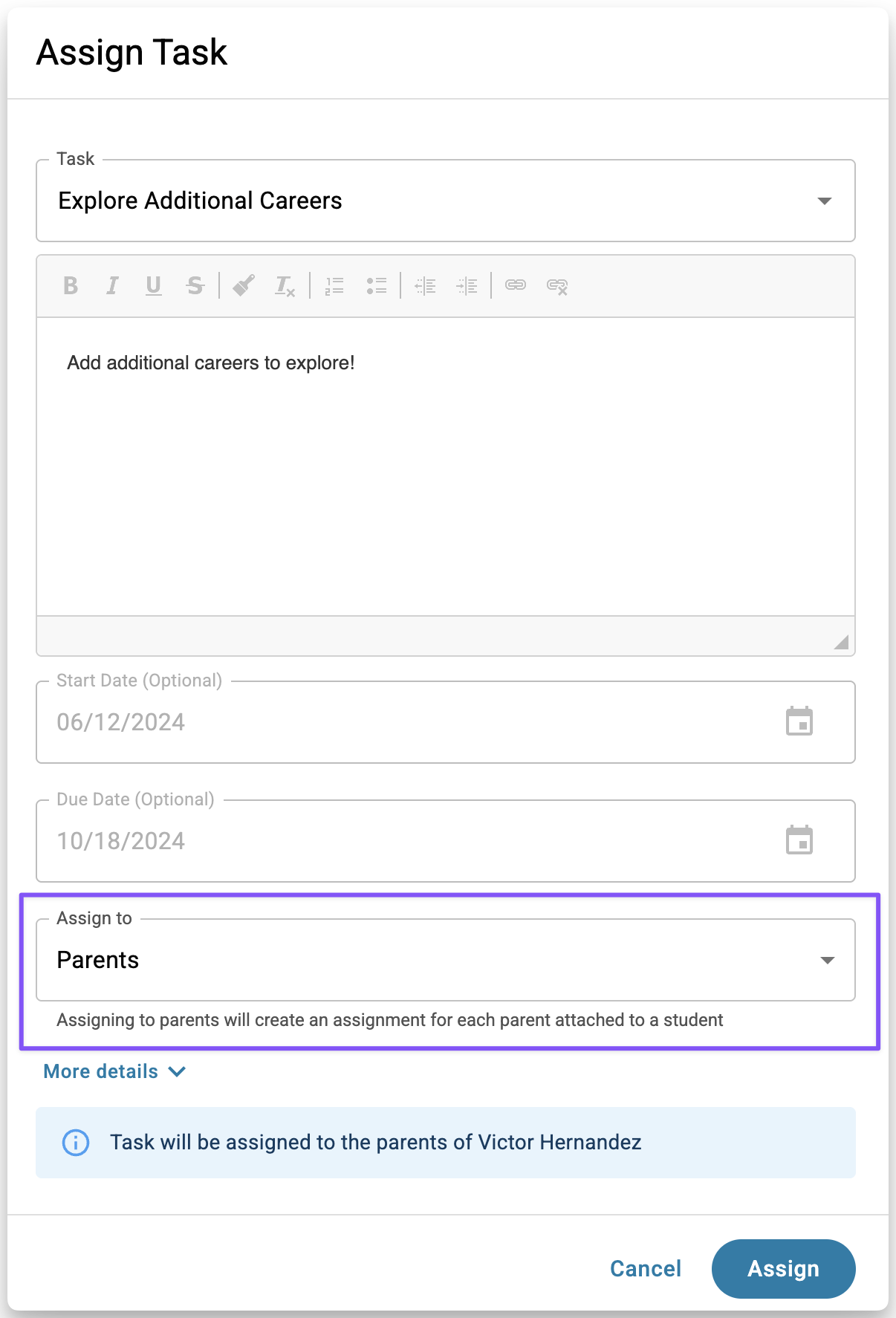
- Select the Task you want to assign. When the Task details appear, open the Assign to dropdown and choose Students.
- Click Assign to finish. The student will receive the Task on their dashboard and will be notified by email.
Assigning to an individual parent
To assign a Task to a single parent or guardian, you’ll do so through their student.
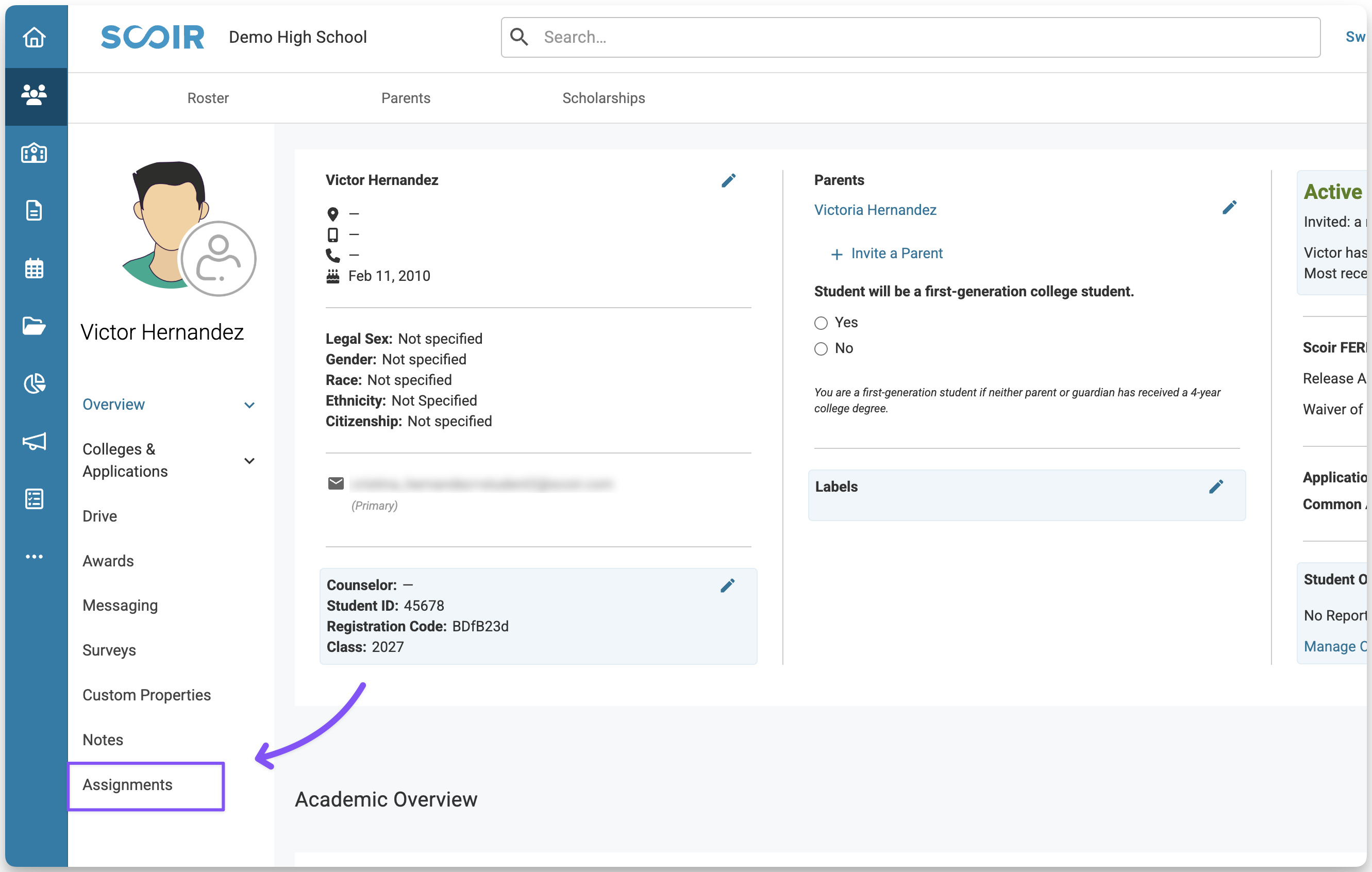
- Go to the student’s profile, then click Assignments in the left-hand menu.
- At the top right, click the arrow next to Assign New Task
- Then select Assign Existing Task.
- Select the Task you want to assign. When the Task details appear, open the Assign to dropdown and choose Parents.
- Click Assign to finish. The parent will receive their own copy of the Task. If the student has multiple parents in Scoir, each parent will receive the Task.
What Students and Parents See
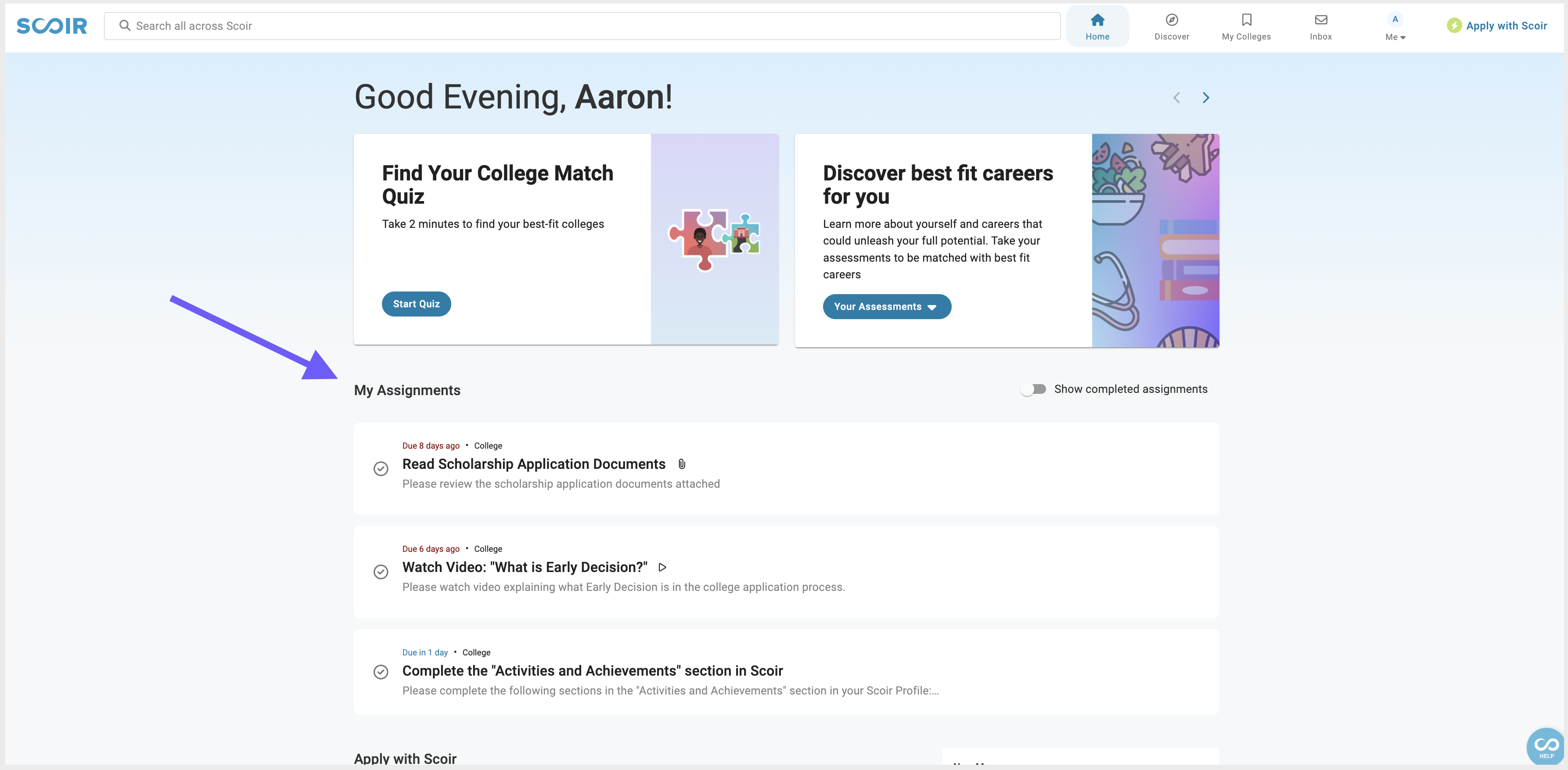
Once you assign a Task, it appears in the Assignments section of the student's or parent's Scoir dashboard. If the Task has no start date, it shows up right away. If it has a start date, Scoir makes it visible automatically when that date arrives.
When a Task includes a Form, students will see a Go to Form button to open and submit it. Once submitted, counselors can review the student’s responses.
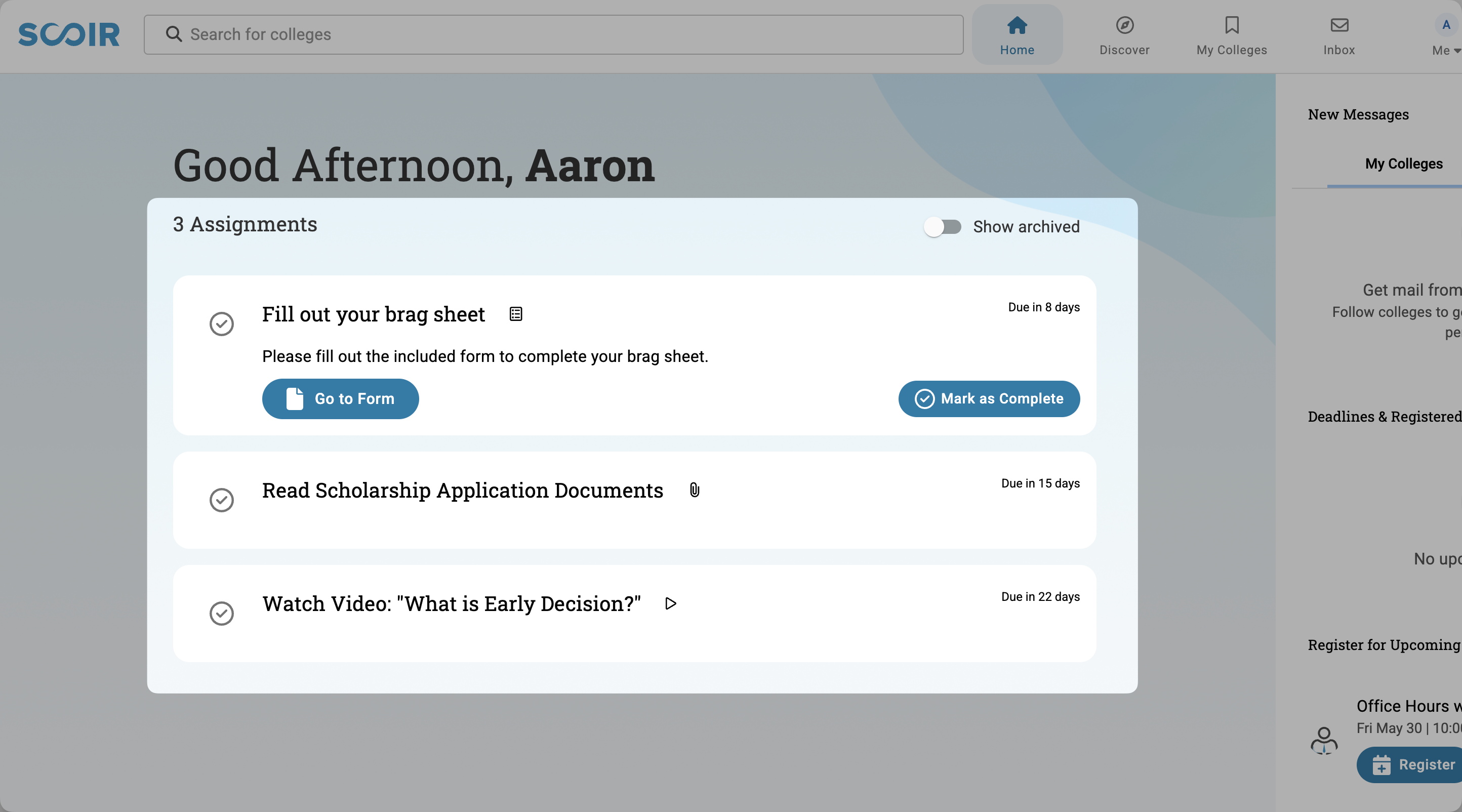
Completing an action within a Task—such as submitting a Form or watching a video—does not automatically mark the Task complete. Students and parents must return to the Task and manually mark it complete when finished. They can also mark a task as complete even if they haven’t submitted an included form.
How Scoir Notifies Students and Parents
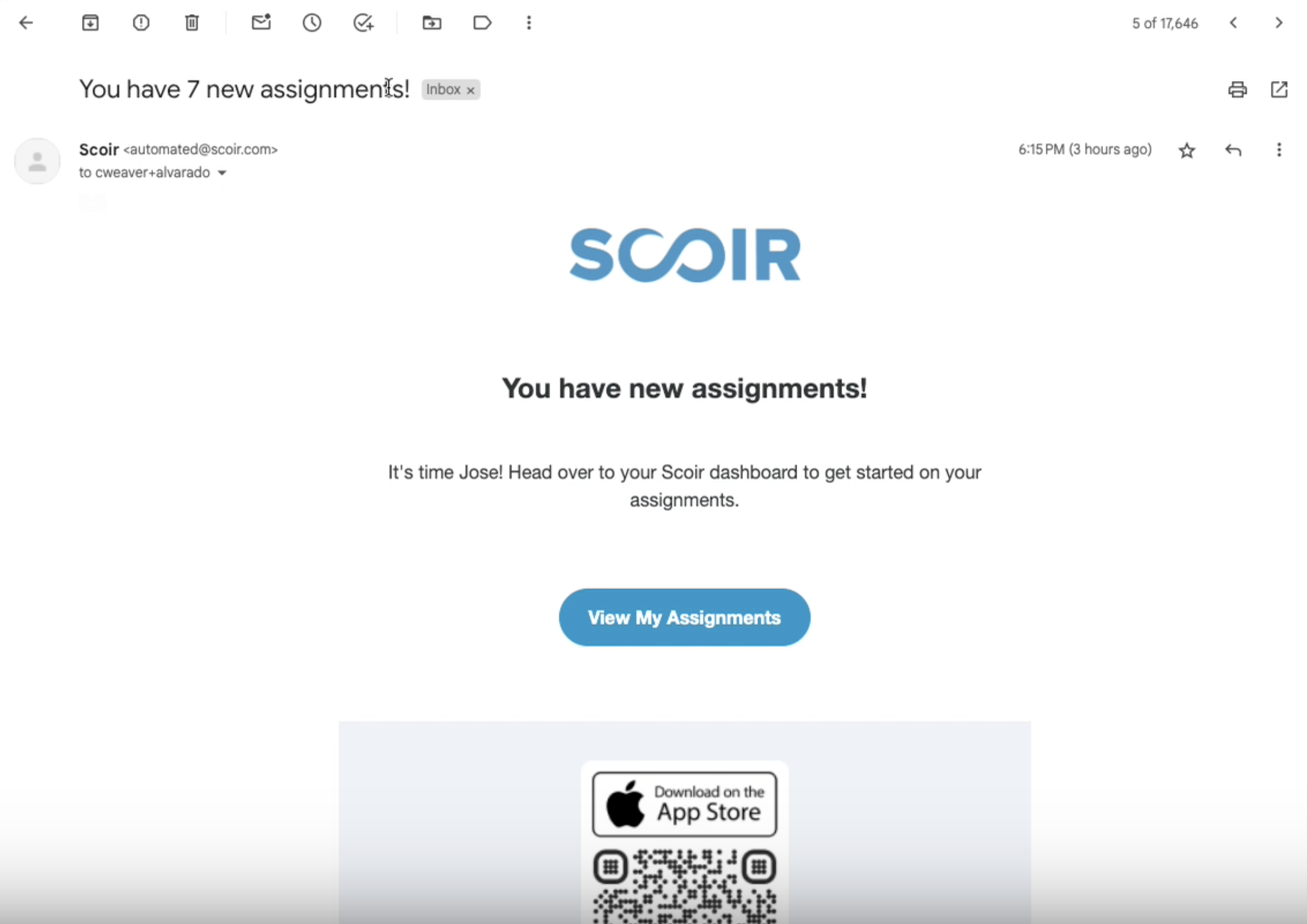
Both students and parents receive an email when you assign a Task to them or send a reminder about an incomplete Task.
For new assignments, Scoir batches emails hourly to avoid inbox overload. It groups all new Tasks assigned within the same hour into a single notification showing the count of new Tasks. If a Task has a future start date, the assignee receives their email at 8 AM local time on that date.
Reminder emails are sent immediately.
Share these guides to help students and parents get started:
- Students: Access and Complete Your Assignments
- Parents/Guardians: Access and Complete Your Assignments
Managing Tasks
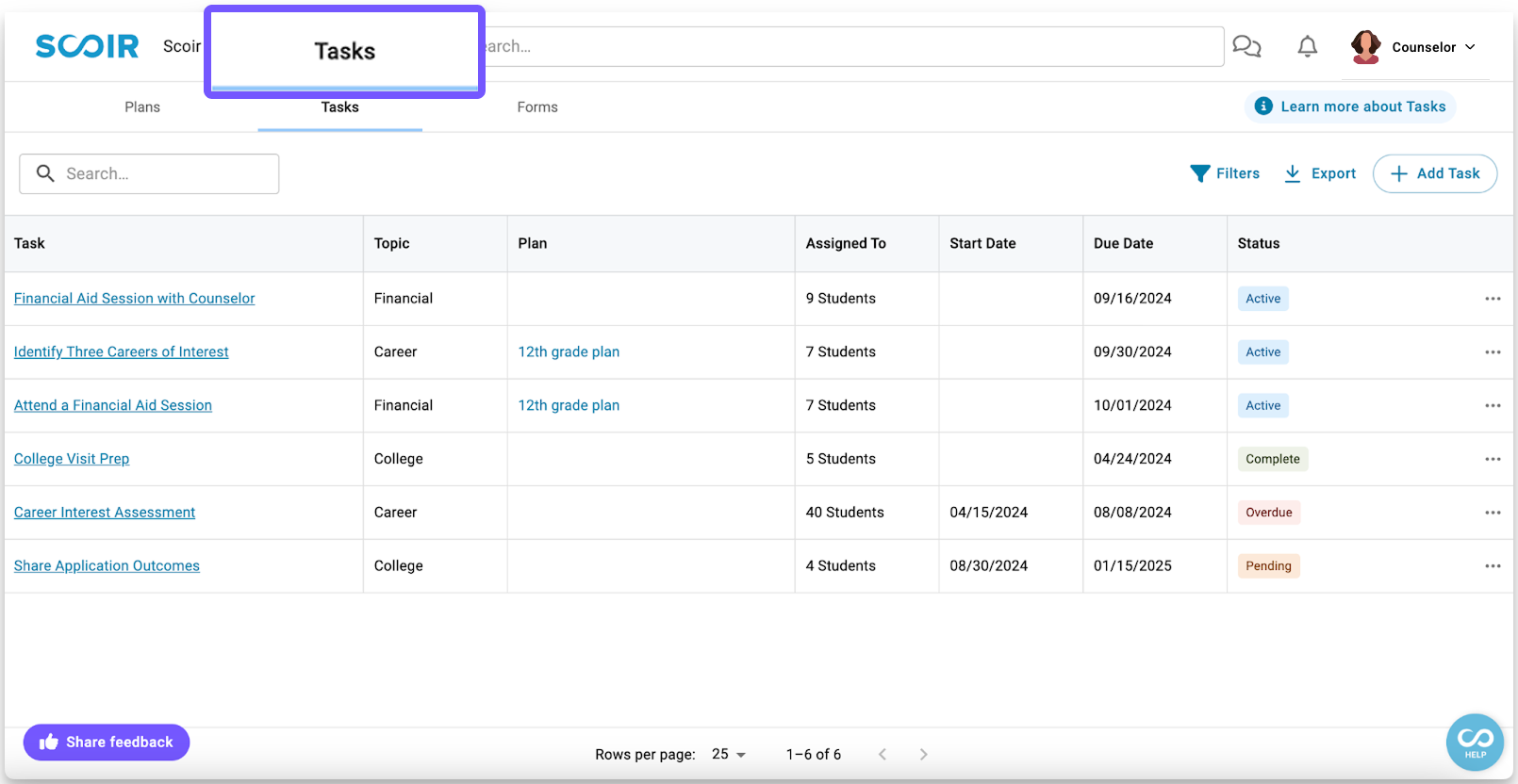
After creating and assigning Tasks, you can manage, track, and update them right from the Assignments > Tasks. The table shows all your Tasks with columns for topic, plan, who it's assigned to, start date, due date, and status.
Use the search bar to find Tasks by title or description. Use filters to narrow by start date, due date, topic, or status. If a Task is associated with a Plan, you can access it from the Plan column.
If your school is part of a network, you'll see an additional toggle in the toolbar:
- Show network-managed tasks: Shows or hides tasks created at the district or network level.
You may also see the following toggle:
- Show Scoir-Created tasks: Shows or hides tasks created by Scoir, such as tasks from Scoir-Created Plans.
Both are on by default. Turn either off to hide those tasks from your table and focus on tasks your school has created.
What does each task status mean?
Active - You've assigned the Task and the start date has passed, but not everyone has completed it and the due date hasn't passed.
Overdue - The due date has passed and one or more assignees haven't completed it.
Complete - Good news! 🎉 Everyone you assigned to the Task has marked it complete.
Archived - This means you've chosen to archive or hide this task from your default view of tasks and from the assignees' list of incomplete tasks.
Tracking Progress
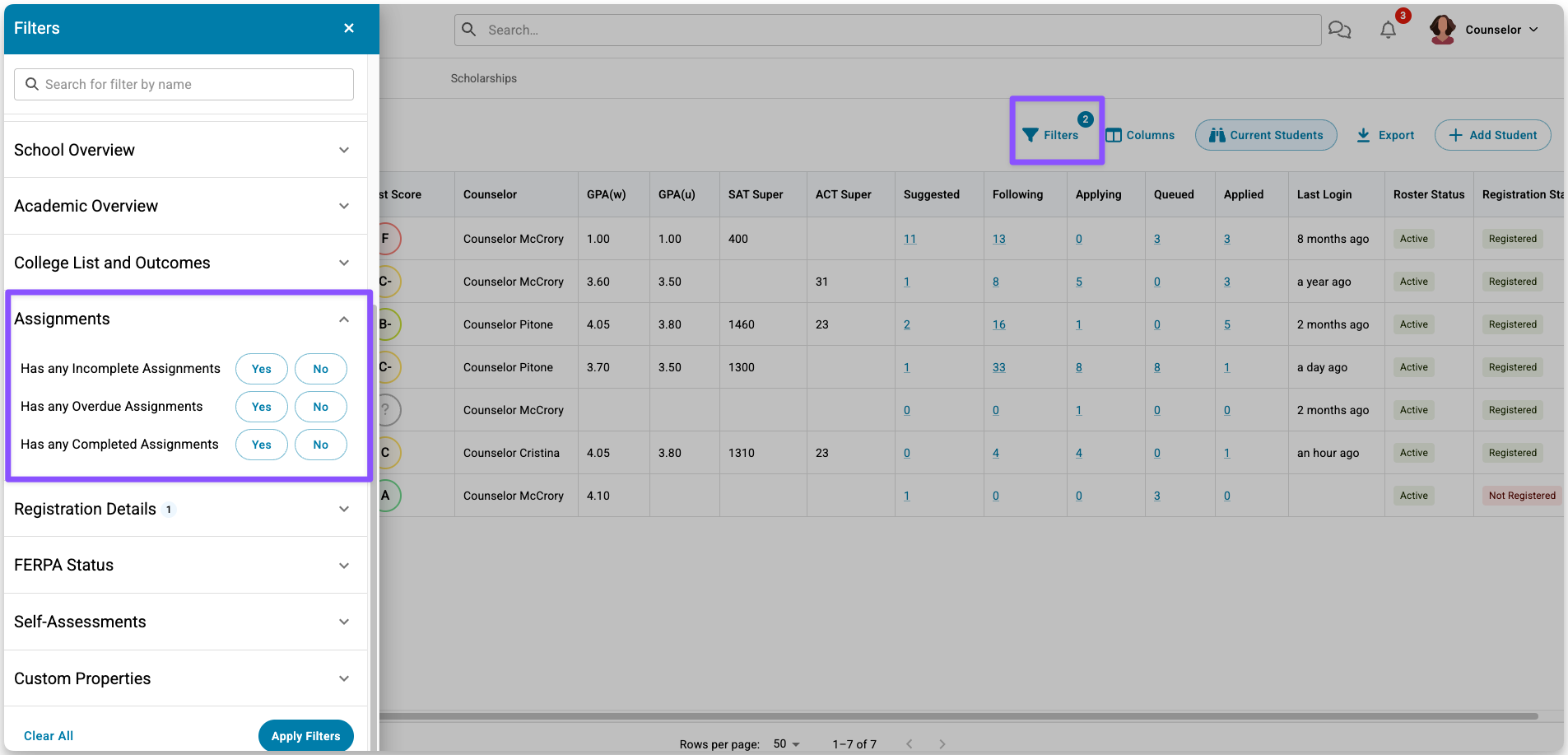
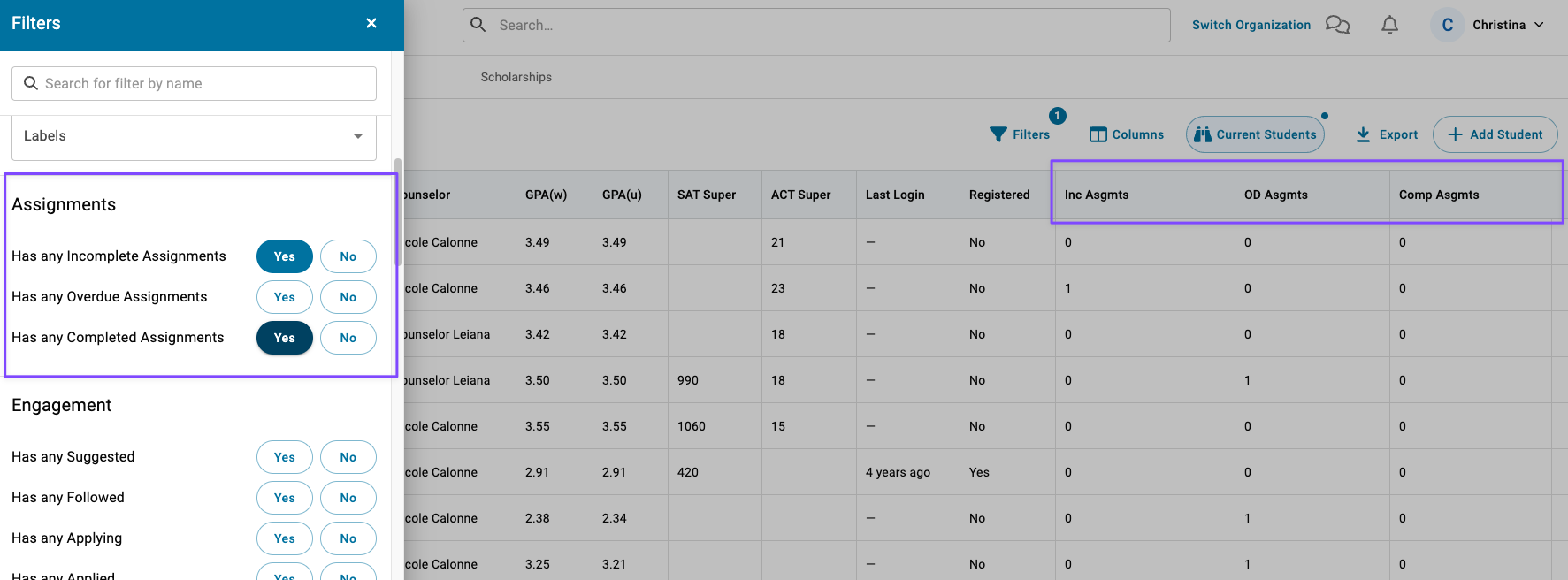
From the Student Roster, you can add columns showing each student's count of incomplete, overdue, or completed assignments, and filter by those statuses. From there, you can click into any student's profile to see their specific Assignments.
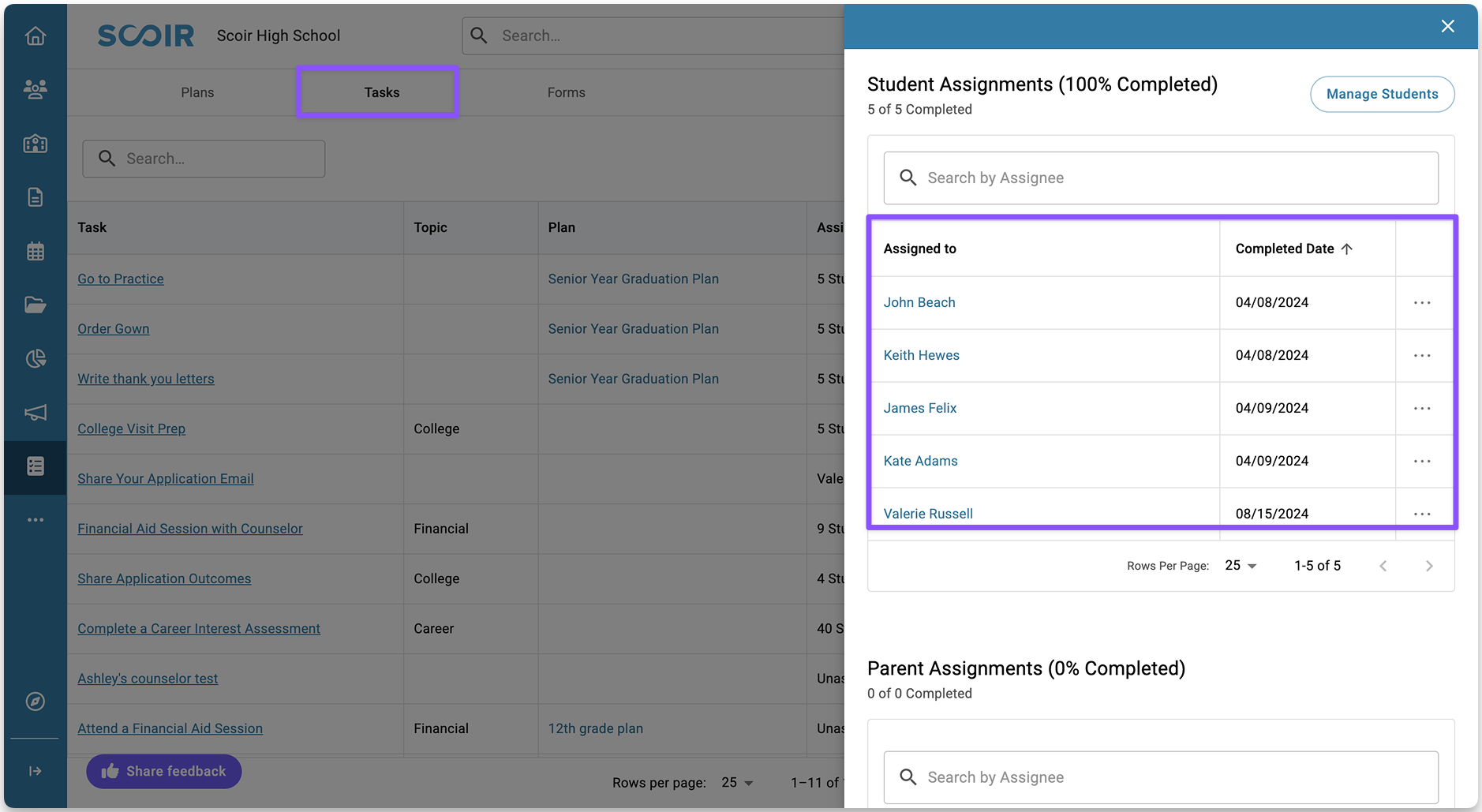
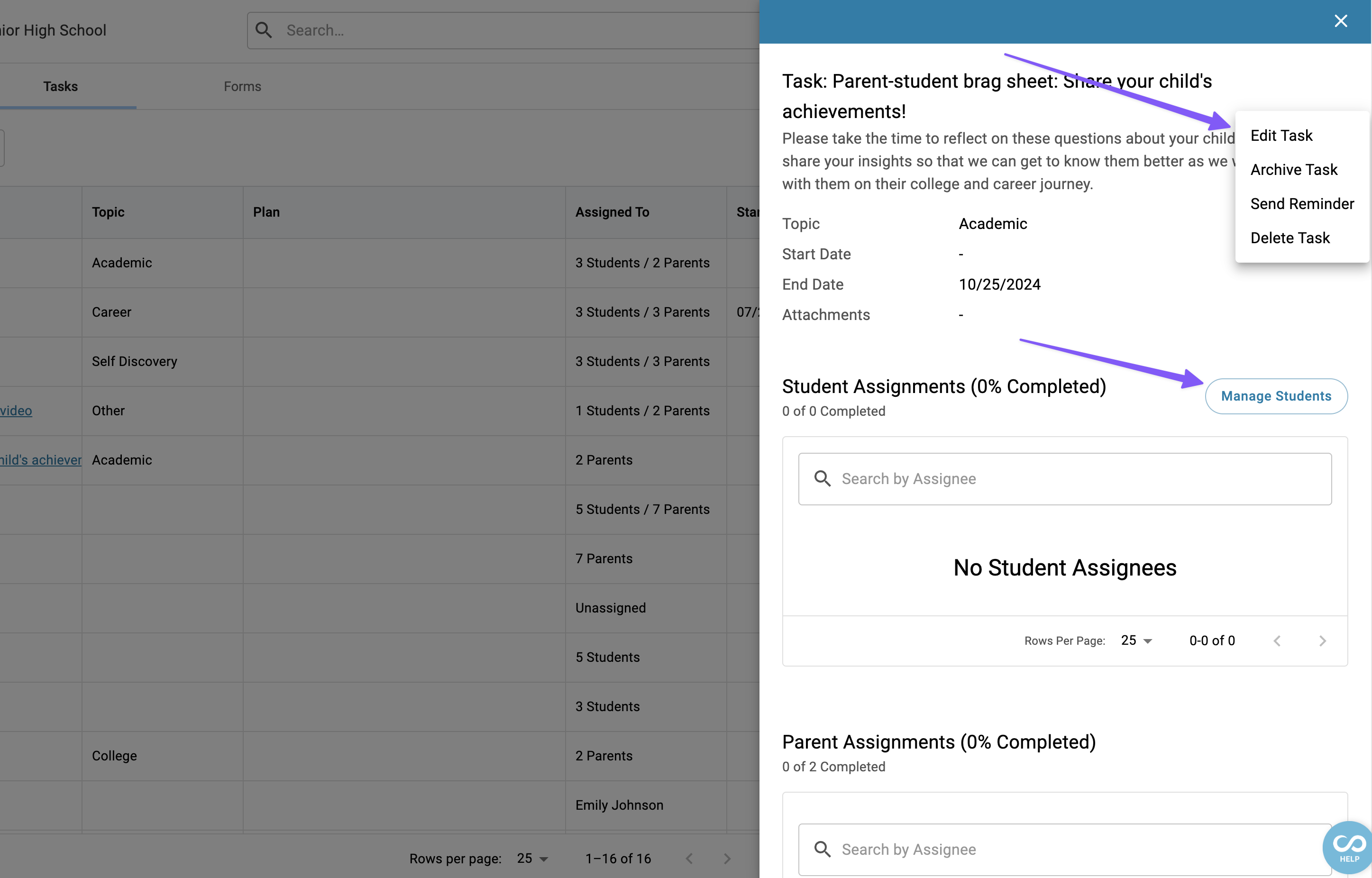
While you can't add individual Assignments as Roster columns, you can track progress on a specific Task by opening it on the Tasks page. The preview drawer shows overall completion metrics and a breakdown by student. You can also send reminders directly from here.
To track Form responses, go to the Forms page and click into a Form to see respondents, their status, the date they last updated it, and their responses. You can view responses by individual student or export them in bulk. Filter by Form responses by class year, counselor, or status to find who still needs to complete it.
Editing, Deleting or Archiving Tasks
- Click the (•••) icon next to any Task in the table, or from within its preview drawer
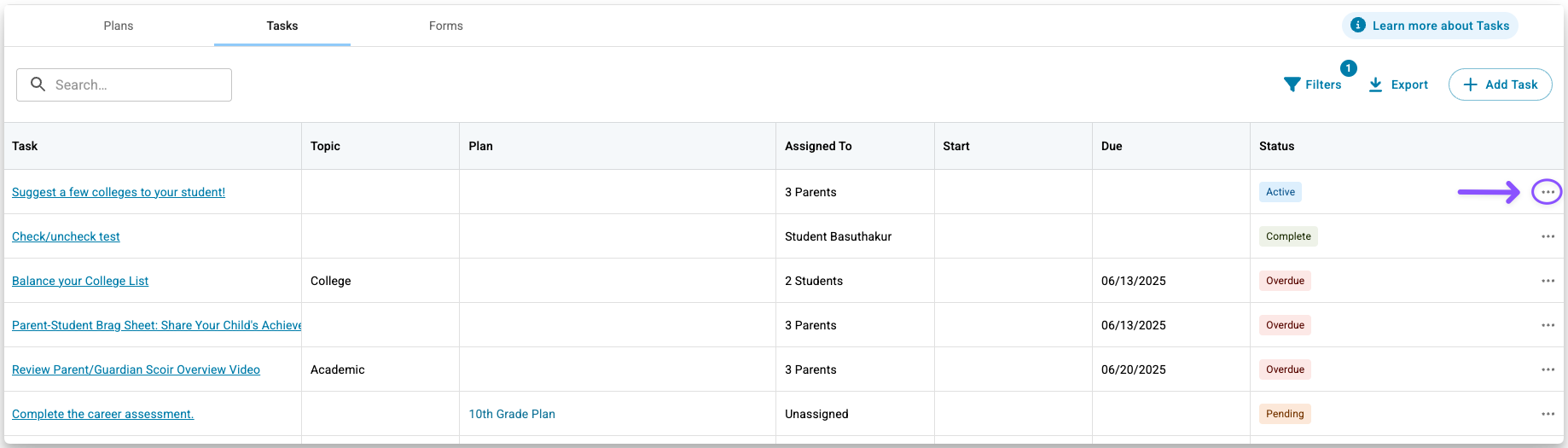
- Then, choose what you'd like to do:
- Edit — You can update the title, description, due date, and attachments.Once a task’s start date has passed, you can’t change that date or add/remove a form that’s already been assigned.
- Delete — Scoir removes the Task permanently. Students and parents can no longer see it, and all history is gone.
- Archive — Scoir hides the Task from your default Tasks view and from assignees' incomplete task lists, but keeps it available for reporting. You can still find archived Tasks using the Archived filter, and students can continue to mark them complete or incomplete.Tasks cannot be unarchived once archived, so use this feature for items you truly want to retire.
When to consider archiving:
- The Task is no longer relevant for students who haven't completed it
- It's been open for a long time and you're ready to move on
- You don't want it cluttering the student's or parent's dashboard
- Edit — You can update the title, description, due date, and attachments.
Exporting Tasks
You can export Task data as a CSV file that includes each Task's details along with the students or parents you assigned it to. See this example CSV file.
- Go to Assignments > Tasks.
- Apply any filters to narrow down which Tasks to include (by topic, date range, status, etc.).Filtering before exporting helps you create focused reports—for example, only tasks that are overdue or only those related to a specific topic.
- Click Export above the Tasks table.
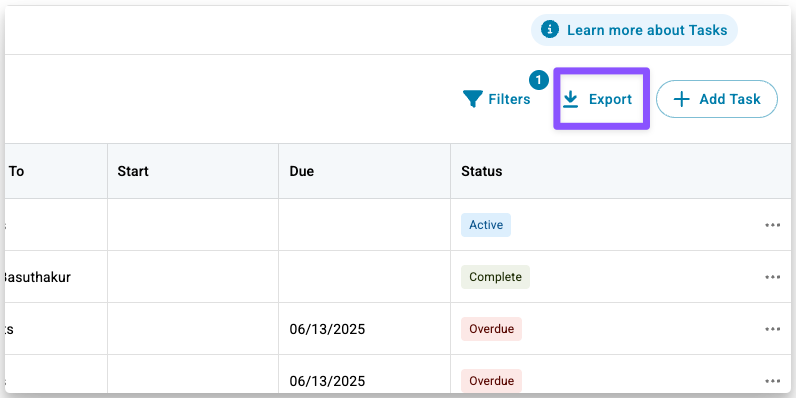
Your file will download as a CSV, ready to open in any spreadsheet tool.
Duplicating Tasks
If you want to reuse a Task, you can duplicate it instead of building it from scratch. Duplicating copies all the Task's details so you can update and reuse them.
- Go to Assignments > Tasks.
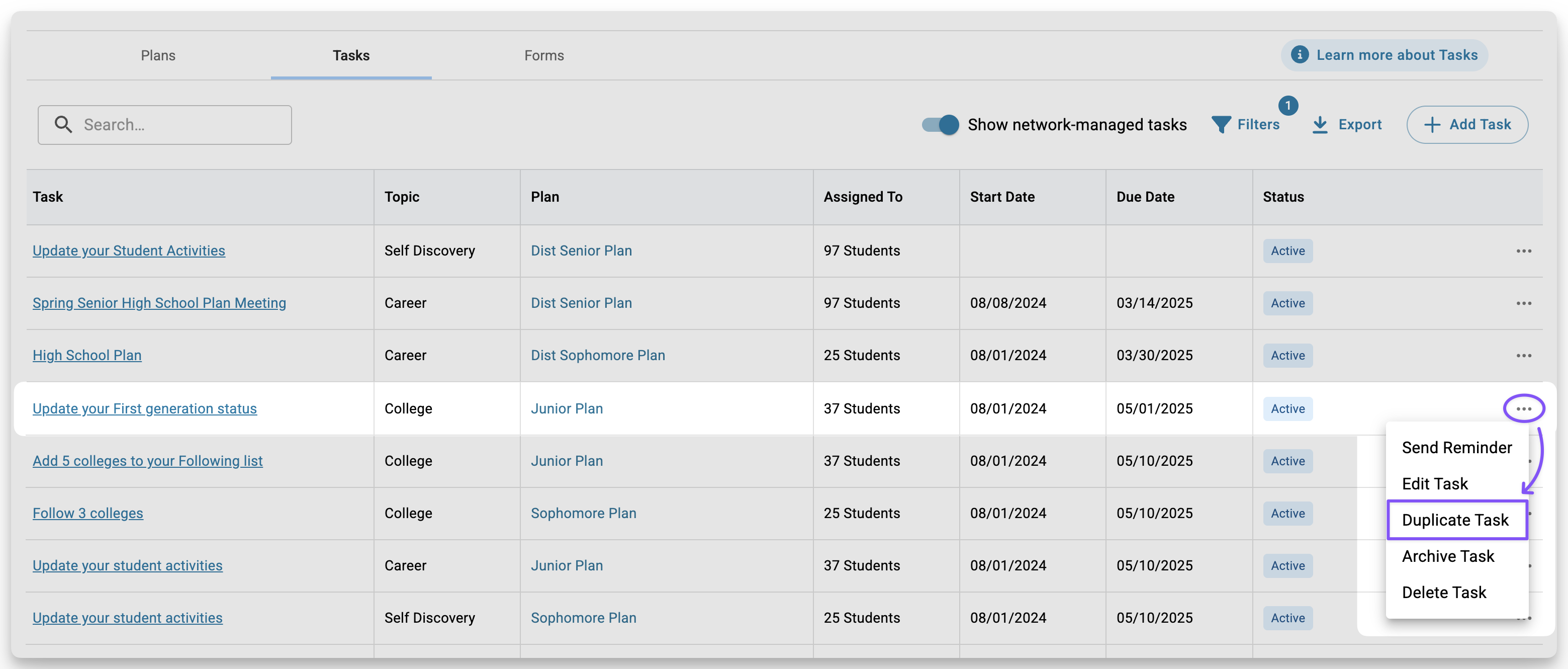
- Click the (•••) icon to the right of the task you want to copy.
- Select Duplicate Task.
- Choose where to duplicate it:
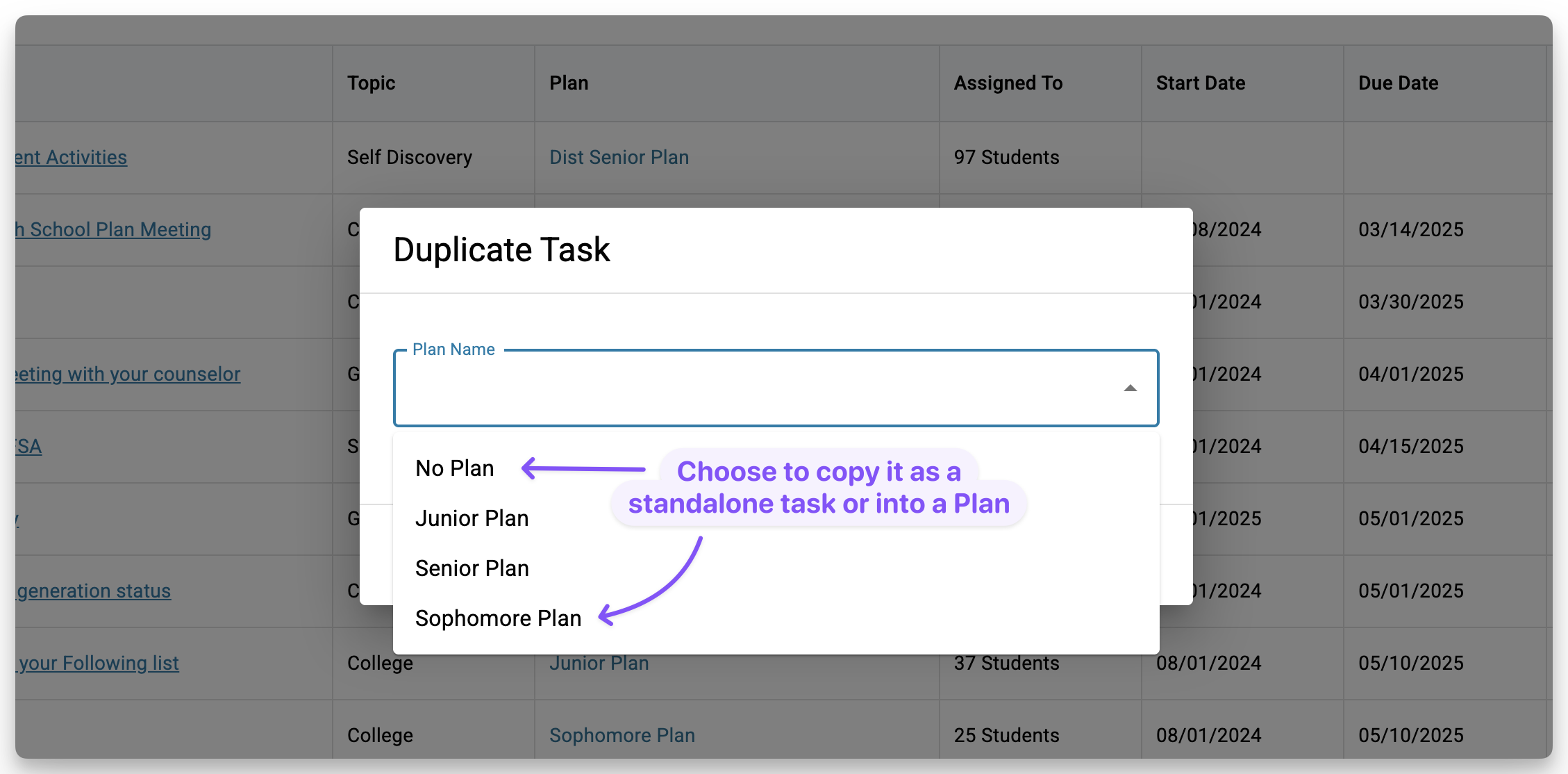
- No Plan: The Task appears in your main Tasks table. Best for one-off assignments or Tasks for parents. You'll still need to assign it manually.
- Into a Plan: Scoir adds the Task to the selected Plan. If the Plan is active, Scoir automatically assigns the Task to the students in that Plan. If the Plan is a draft, Scoir won't assign it until you publish the Plan.
Tasks duplicated into a Plan are assigned to students only. If the Task is meant for parents or guardians, do not duplicate it into a Plan. - Click Duplicate. Scoir labels it as “(Copy)” until you rename it.
- Update the details as needed and click Save.
Additional Ways to Manage Tasks
From the Student Roster, counselors can:
- Add columns displaying the count of incomplete, completed, or overdue assignments per student
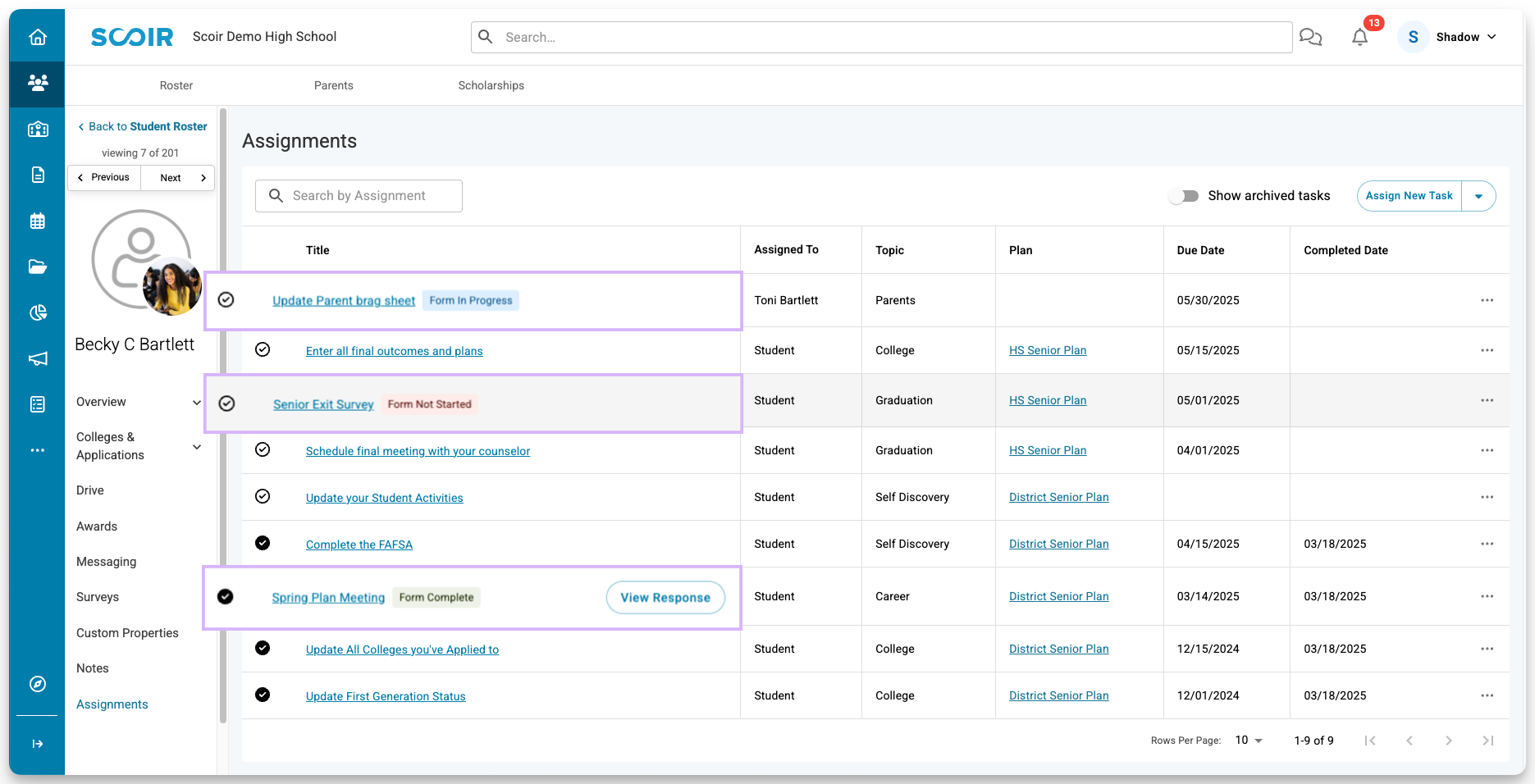
From the Assignments section of the student preview or profile, counselors can:
- Assign or un-assign a Task
- Mark a Task as complete or incomplete
- View the Plan a Task is associated with (if it has one)
- See form status indicators (complete, in progress, not started)
- Access submitted form responses
- Toggle the Show archived tasks view
From the Task preview drawer, counselors can:
- Edit or delete a Task
- Assign or un-assign students
- Un-assign parents
- Mark Tasks complete or incomplete
- View the associated Plan
Frequently Asked Questions
Do I need special permissions to create tasks?
Are tasks automatically assigned after I create them?
Can I assign tasks to parents from the Parent Roster?
Can I assign a Task to additional students or parents after it's already been assigned?
What happens when a new student or parent is added to the school roster?
Why isn't a parent seeing their assigned Tasks and Forms?
When students invite parents, those parent accounts must be approved and linked to the school before they can receive assignments.
To fix this:
1. Go to your Parent Roster and filter by Pending under Registration Details
2. You can then select all and invite the parents, which will link them to the student and the school
3. Once the parent is linked, you’ll need to assign the Task again. See "Assigning Tasks" above for steps.
Can parents see their student's Tasks or Form responses?
Is there a difference between a Task with a Form and one without?
Can I see who has completed a Task?
What do tasks look like for students and parents, and when do they become visible to them?
Tasks assigned without a start date will be automatically visible to asignees. Tasks with a start date become visible once the start date is met.
How will students and parents be notified about their tasks?
For new assignments, emails will be sent every hour to prevent overload. Within each hour, new assignments will be consolidated into a single email, indicating the count of new tasks. If an assignment has a future start date, assignees will receive an email at 8 am local time on that day.
Reminders will be sent immediately to students/parents via email.
When should I consider archiving Tasks?
- It is no longer relevant to the assignees who have not yet completed it
- The task has been open for an extended period
- It should not appear on a student’s or parent's default view of incomplete assignments
- The students are ready to move on to new tasks
What does archiving a Task look like for counselors and students?
- Once a task is archived, it no longer appears on their list of incomplete assignments, but they can still access archived tasks using the Show Archived Tasks toggle on their dashboard
-They can mark archived tasks as complete or incomplete, and the status (complete or incomplete) is still accurately reflected
For counselors:
- When a task is archived, its status is updated to "Archived," indicating that it’s no longer active
- Once archived, tasks do not appear on the Tasks page's default view or in the student profile's Assignments section. Use the Archived filter or turn on the Show archived tasks toggle to view them. Archived tasks are also not shown in the student preview on the student roster.
- Counselors can still generate reports on the completion status of archived tasks