In this article
- What This Integration Does
- Preparing for the Integration
- Before Students Connect Accounts
- How Students Connect Scoir & Common App
- How to Check Student Account Connection & FERPA Status
- How College List Syncing Works
- Managing Teacher Recommendations
- Preparing Counselor Forms
- Sending Documents
- Troubleshooting
- Additional Resources & Training
Counselors: Using Scoir with Common App
 Updated
by Customer Support
Updated
by Customer Support
- What This Integration Does
- Preparing for the Integration
- Before Students Connect Accounts
- How Students Connect Scoir & Common App
- How to Check Student Account Connection & FERPA Status
- How College List Syncing Works
- Managing Teacher Recommendations
- Preparing Counselor Forms
- Sending Documents
- Troubleshooting
- Additional Resources & Training
This guide explains how the Scoir + Common App integration works and what to do before students start applying.
Table of Contents:
- What This Integration Does
- Preparing for the Integration
- Before Students Connect Their Accounts
- How Students Connect Scoir & Common App
- How to Check Student Account Connection & FERPA Status
- How College List Syncing Works
- Managing Teacher Recommendations
- Preparing Counselor Forms
- Sending Documents
- Troubleshooting
- Additional Resources & Training
What This Integration Does
The integration connects Scoir and Common App so you can monitor application submissions and send all supporting materials to Common App directly through Scoir.
Here's what changes:
- Students link their accounts: When students connect their Scoir and Common App accounts, information flows between the two platforms automatically.
- College lists sync: Colleges students add in Common App appear automatically in Scoir, so you can see where they're applying without asking.
- Recommendations stay in Scoir: You or your student will request and assign teacher recommendations in Scoir. This eliminates duplicate requests from Common App.
- Streamlined forms: Students will sign FERPA releases, request fee waivers, and initiate Early Decision Agreements in Common App. Then you'll complete your portions and prepare other required documents in Scoir.
- Consistent document delivery: You'll send everything (transcripts, recommendations, counselor forms) from Scoir. Documents route through Common App and get delivered to colleges in a standard format.
If you're wondering where different tasks happen, here's a quick reference:
WHO | WHAT | WHERE |
Students | Sign FERPA Release & Waiver | Common App |
Students | Initiate Early Decision Agreements | Common App |
Students | Make Fee Waiver Requests | Common App |
Students | Choose Application Round, and build and submit applications | Common App |
Counselors & Students (based on your settings) | Request and assign teacher recommendations | Scoir |
Counselors | Create Counselor Evaluations and Secondary School Reports | Scoir |
Counselors | Complete counselor portion of Fee Waivers & Early Decision Agreements | Scoir |
Counselors | Sending Documents | Scoir |
Preparing for the Integration
There are a few setup steps that will help streamline document preparation and delivery, and reduce potential issues once the application season is underway. Some of these tasks will be handled by your account administrator, while others are for counselors and teachers to complete.
Preparing your School Account
We recommend your Scoir Account Administrator review all Document Settings to ensure they align with your school’s preferences. The steps below highlight settings that are directly impacted by the Common App integration.
✔️ Complete Secondary School Report Template (required)
Before the integration can work, your school’s Secondary School Report Template must be set up in Scoir.
The School Report is required for all Common App applications and is generated from this template in Scoir. Completing the template in advance allows you to pre-fill common school details, leaving only student-specific information to add later.
✔️ Bulk Upload Documents Before Application Season
We strongly recommend bulk uploading transcripts and senior courses in advance.
These documents are required when creating School Reports, Midyear Reports, and Final Reports. Uploading them early ensures they’re ready to attach, saving time and reducing manual uploads during application season.
✔️ Upload Your School Profile (optional)
If your school uses a School Profile, upload it in Scoir so it automatically attaches to School Reports and provides additional context for colleges. This step is optional, but should be completed in School Settings > Documents & Templates before creating any reports.
sss
✔️ Review Recommendations Settings
Your Account Administrator should review these settings to confirm how teacher recommendations will be requested and sent in Scoir.
- Can students request recommendations?
- On: Students (in addition to counselors) can request and assign recommendations to colleges
- Off: Counselors manage all recommendation requests and assignments
- Can students request college-specific recommendations?
- On: Students can request college-specific recommendations. We recommend using this option only for non–Common App colleges
For Common App colleges, only one recommendation per teacher can be sent, even if multiple college-specific letters are written for a student. For that reason, general recommendations are the best option for Common App schools. - Off: Students can request only general recommendations, which can be assigned to multiple colleges.
- On: Students can request college-specific recommendations. We recommend using this option only for non–Common App colleges
- Should recommendations auto-send once assigned?
- On: Recommendations send automatically after assignment (once at least one document has been sent to Common App)
- Off: Counselors control when they're sent
✔️ Review Midyear and Final Document Settings
For Common App applications, colleges themselves determine when Midyear and Final Reports are required - not your Scoir settings. Once you send a report to Common App, it becomes available to all the student's Common App colleges. Your Scoir settings only apply to non-Common App applications.
Preparing Counselors
✔️ Complete Required Setup at First Login
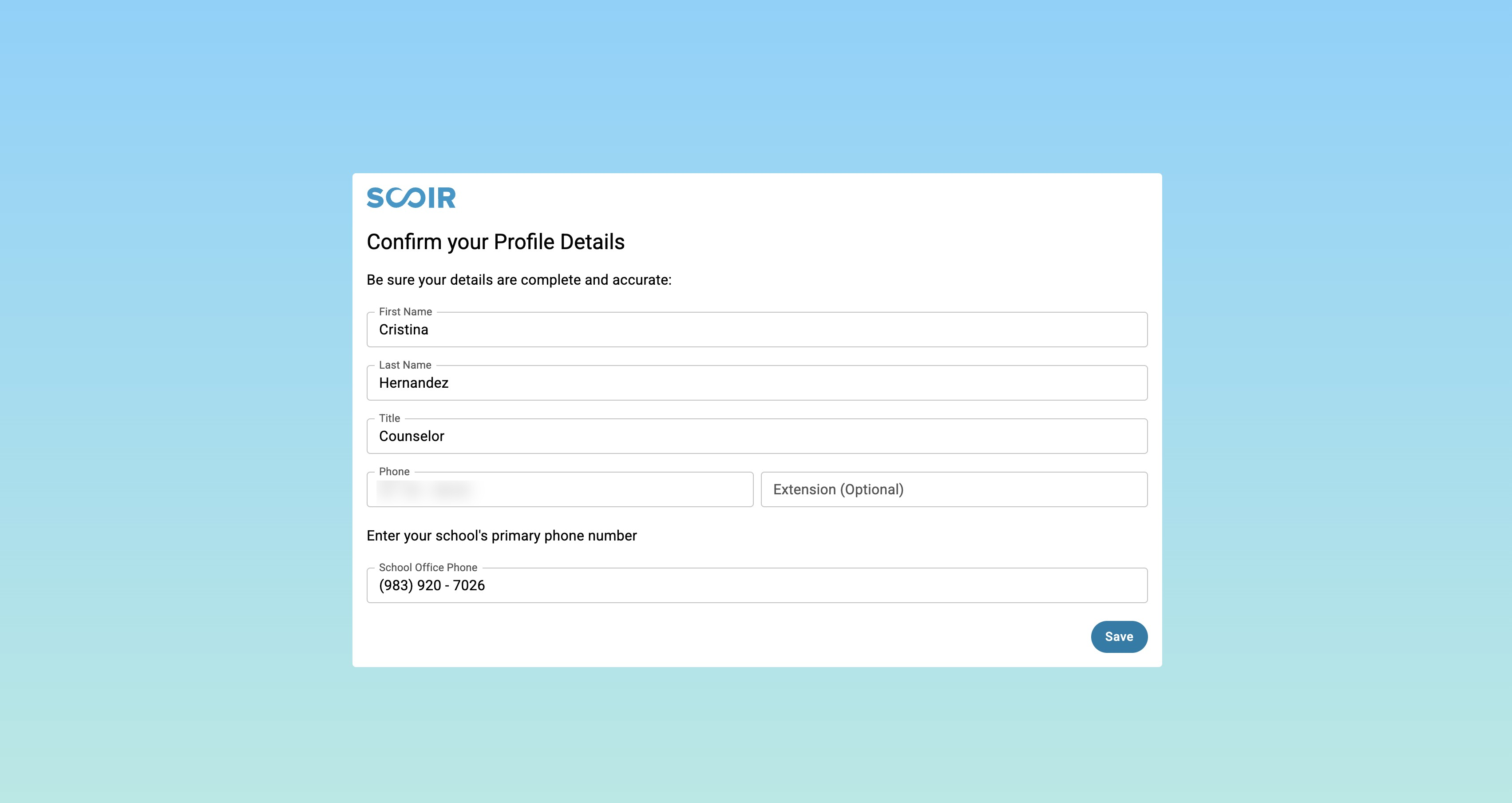
When counselors first log in, they must complete the following before proceeding in Scoir:
- Counselors must review and agree to the updated Terms of Service.
- All required profile fields must be filled out, including name, title, and phone number.
ff
✔️ Assign Counselors to Seniors
Before students connect their accounts, confirm that all seniors have an assigned counselor in Scoir. Only students with an assigned counselor can fully sync their Scoir and Common App accounts. Learn how >
Preparing Teachers
✔️ Complete Required Setup at First Login
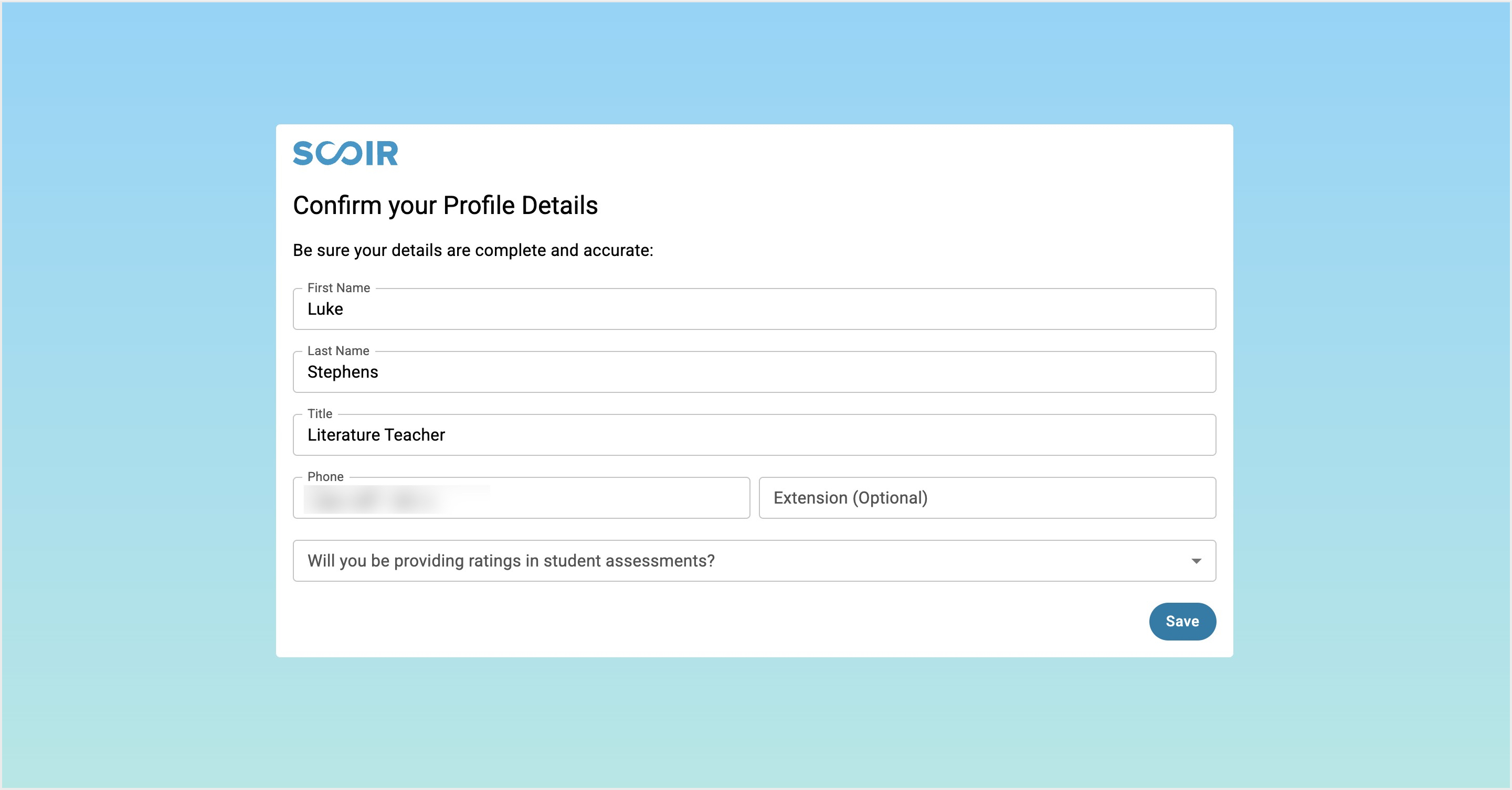
When teachers first log in, they must complete the following before proceeding in Scoir:
- Teachers must fill out all required profile fields.
- Teachers decide whether to include ratings with their recommendations.
Teachers who choose to include ratings must complete all 16 required rating fields with each recommendation.
Teachers can change their ratings setting later in their Personal Profile. Changing this setting affects unsent recommendations and may require updates. Learn more in Teacher Recommendations in Scoir.
Before Students Connect Accounts
Once your school setup is complete, students will need to take a few key steps in their Common App account before they can connect it to Scoir.
Students must:
- Log in or create a Common App account
When students create a new Common App account, they should use their legal first and last name to ensure documents match correctly. The email students use to create their Common App account does not need to match the one in Scoir. - Add their high school
This tells Common App that Scoir will be used to send their application documents. If students aren’t sure which school listing to choose, you can provide your school’s CEEB code - Add at least one college to their Common App "My Colleges" list
- Select a preferred start term and admission plan for each college they plan to apply to
This step is required in order to view and prepare application documents in Scoir - Sign the FERPA Release Authorization
This must be completed in Common App before any documents can be sent through Scoir - Request a Fee Waiver (if applicable)
If a student requests a fee waiver, counselors will be prompted to complete their portion in Scoir
Important things to know:
- The email they use for Common App doesn't need to match their Scoir email
- If students skip the start term or admission plan, colleges will sync to Scoir but you won't see document requirements until they complete both
- Without the FERPA signature, you can't send any documents
How Students Connect Scoir & Common App
Once students complete the required steps in their Common App account, they’re ready to connect it to Scoir. This connection allows their Common App college list and application activity to sync into Scoir, so you can begin preparing and sending documents.
To connect, students go to their Scoir profile, select Connect Common App, sign in with their Common App credentials, and authorize the connection.
Once the connection is complete, the student will be redirected back to Scoir. On their profile, they’ll be able to see their account connection status, CA FERPA status, and CA ID. Their Common App “My Colleges” list will also automatically sync into Scoir.
Important things to know:
- Entering a Common App ID alone does not connect accounts. Students must complete the full connection process.
Once connected, Scoir automatically updates the student’s profile with the ID received from Common App. - Only seniors will see the option to connect accounts. Seniors must have an assigned counselor to complete the connection. If no counselor is assigned, the student will see a message directing them to contact their counseling staff.
Share our Student Getting Started Guide for a detailed walkthrough.
How to Check Student Account Connection & FERPA Status
You can use filters in the Student Roster to check whether students have connected their Scoir and Common App accounts—and, once connected, whether they've signed the FERPA Release Authorization in Common App. This is a quick way to track progress and follow up with anyone who still needs to connect.You can check student progress from the Student Roster using Common App filters.
Check connection status:
- Student Roster > Filters > Common App section
- Select "Account Connection Status"
- Choose "Connected" or "Not Connected"
Check FERPA status:
- Student Roster > Filters > Common App section
- Select "FERPA Status"
- Choose "Waived," "Not Waived," or "Not Signed"
Students can update their FERPA decision in Common App at any time up until a counselor sends a school form or the student submits their first application.
How College List Syncing Works
Once students connect their accounts, colleges added in Common App automatically appear in their My Colleges list in Scoir. This allows you to track where they’re applying and begin preparing and sending documents.
When a student adds a college in Common App:
- It appears in their "Applying" list in Scoir
- It stays "queued" or "pending" until they select a start term and admission plan
- Document requirements populate once those selections are made
If a student removes a college in Common App, it moves to "Following" in Scoir. After a student submits an application, the college moves to "Applied" and you receive a notification to start preparing documents.
Important things to know:
- Avoid moving Common App colleges in Scoir if the student still intends to apply - moving a college tile out of "Applying" will stop the sync for that college. If a student is truly no longer applying, they should remove the college from their My Colleges list in Common App instead.
- Changes students make in Common App will sync over to Scoir, but changes made in Scoir won't sync back to Common App.
- Scoir doesn't automatically know when students get accepted, denied, or waitlisted. Students need to manually enter admission decisions once they receive them.
What If Students Added Colleges Before Connecting?
If colleges were added in Common App first: No problem - they'll automatically sync over to Scoir as soon as students connect their accounts.
If colleges were added in Scoir first: Students will need to also add those same colleges in Common App. Once they connect their accounts, Scoir will update the college tiles based on the Common App information:
- Colleges in "Following" will move to "Applying"
- Colleges already in "Applying" will be updated with Common App details
What about duplicate college tiles? Sometimes students end up with two tiles for the same college (one added as non-Common App in Scoir, one added in Common App). They can mark the non-Common App tile as "No Longer Applying" to clean this up.
What If a Student Changes Their Application Method?
If a student wishes to change their application method from Common App to Scoir, please contact support so we can ensure documents are sent to the college(s) in a timely manner.
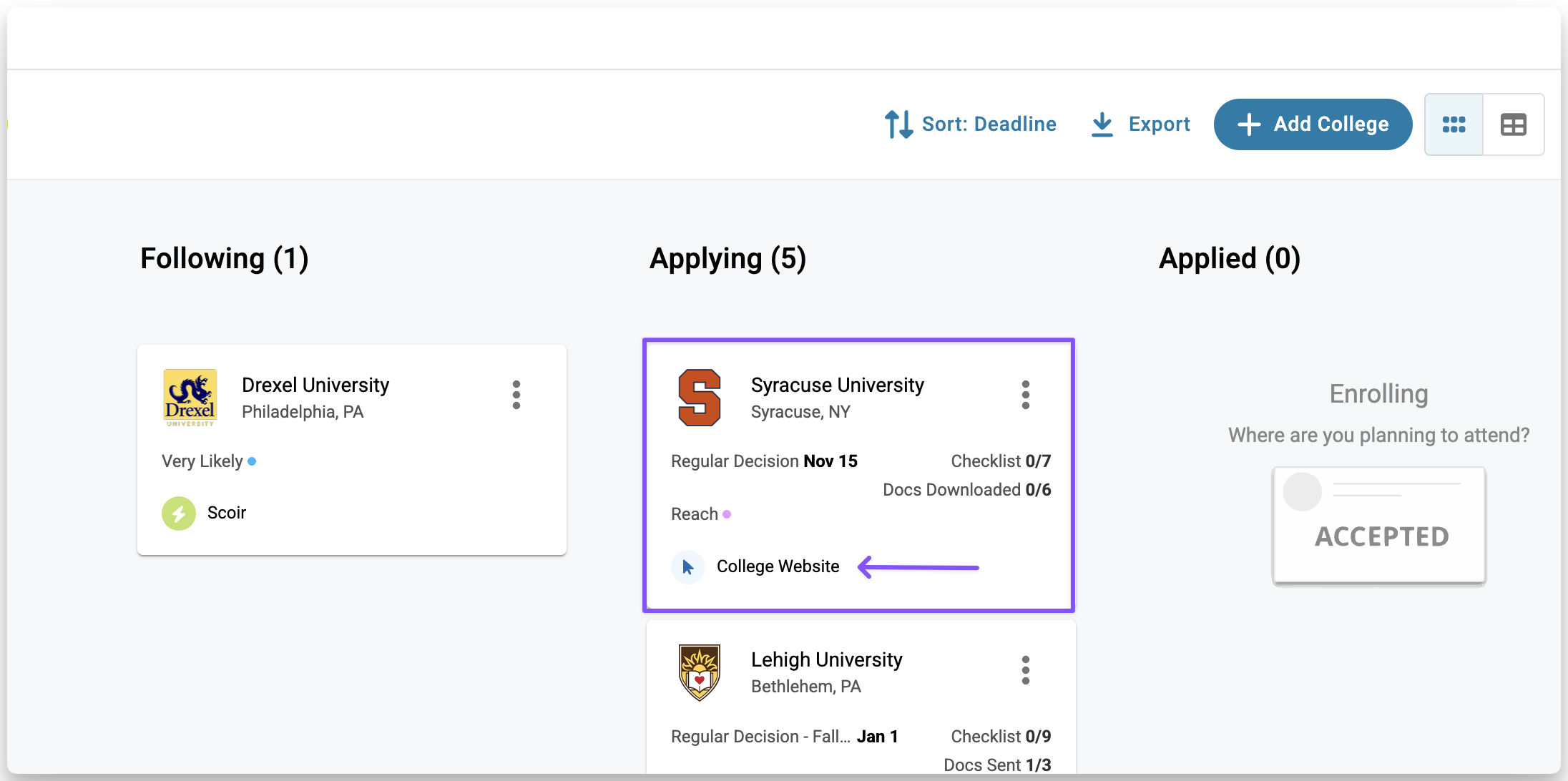
If a student originally planned to apply to a college via Common App, then decided to apply via the college’s website instead, create a new tile for the same college and move it to Applying, then set the application method to college website.
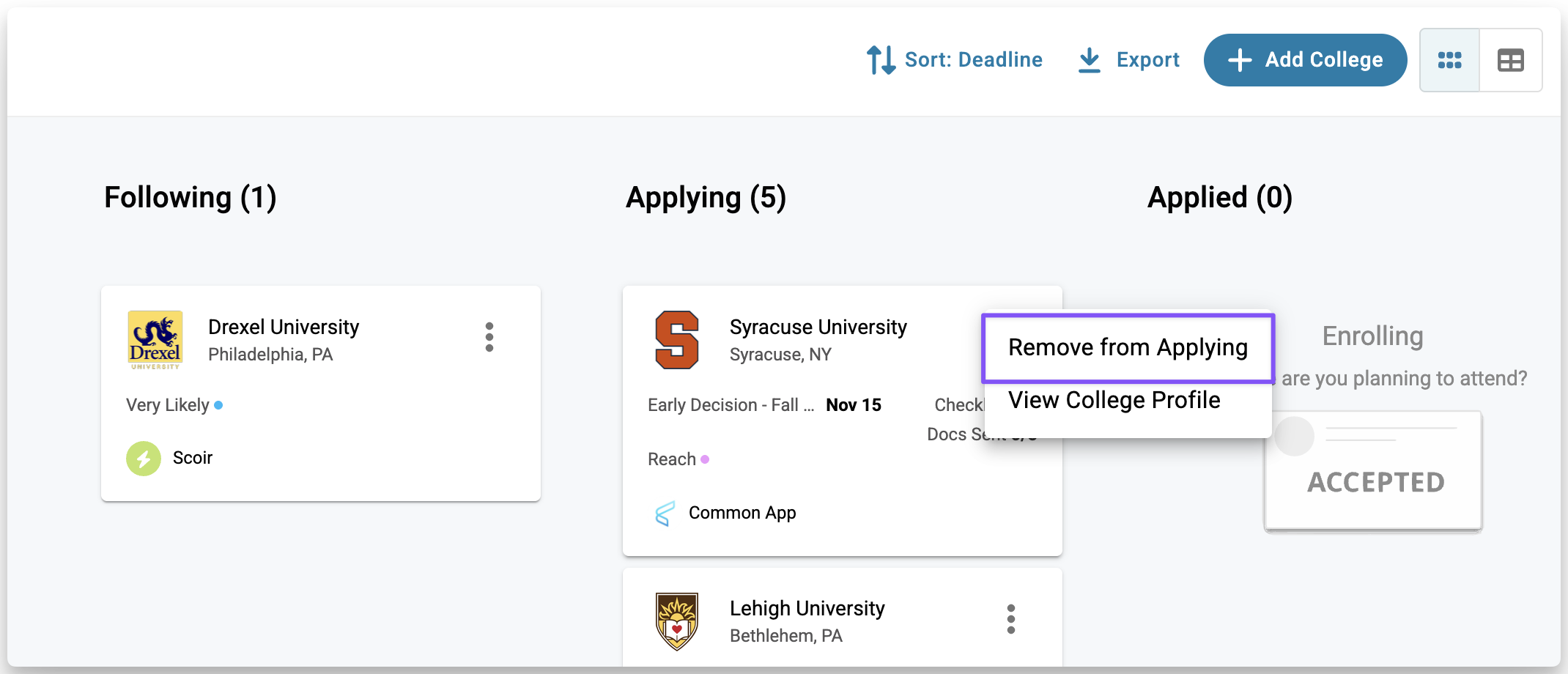
Then, they should remove the college from Common App or they can remove the old college tile in Scoir from Applying.
Managing Teacher Recommendations
All teacher recommendations are requested, completed, assigned, and sent in Scoir for all application methods, including Common App colleges. This keeps recommendations centralized and prevents duplicate requests.
How Recommendation Requests Work
Before requesting recommendations, it’s important to understand how recommendations work for Common App colleges, since this affects how you should request them.
For Common App applications, only one recommendation per teacher can be used across all of a student’s colleges. This means if a teacher writes more than one letter, only one can be used. To avoid conflicts, it is strongly recommended to request general recommendations, since they can be assigned to multiple colleges without issue.
Teacher recommendations for Common App colleges must be completed directly in Scoir. You can’t upload a teacher’s recommendation on their behalf. For non–Common App application methods, counselor-uploaded teacher recommendations are still supported.
How recommendations are requested depends on your school’s settings:
If students are allowed to request recommendations, they can do so directly in Scoir and assign completed recommendations to colleges. Scoir will show notifications on college tiles in My Colleges when assignments are needed. Learn more >
If only counselors manage recommendation requests, you’ll request recommendations on behalf of students and assign them to colleges. Learn more>
What Teachers Complete
When a teacher receives a recommendation request in Scoir, they’ll get an email notification with a link that takes them directly to the request.
The first time a teacher logs in, they complete a short one-time setup in Scoir. This includes:
- Completing their personal profile with a title and phone number
- Choosing whether to include student ratings with their recommendations
This setup is required before submitting any recommendations. Teachers can change their ratings preference later from their Personal Profile.
When completing a recommendation, teachers respond to required evaluation questions and write their letter. These questions include:
- Subject area taught
- How long and in what context they’ve known the student
- Courses taught (including difficulty level)
- Grade levels taught
- Short descriptive prompts about the student
If a teacher chooses to include ratings, they must complete all 16 required rating fields for each student as part of the recommendation.
Share our Teachers: Completing Recommendations Guide with your teachers so they know what to expect.
Assigning Recommendations to Colleges
After a teacher completes a recommendation, it must be assigned to colleges before it can be sent. This applies to all application methods, including Common App.
- Students (if allowed by your settings) can assign recommendations from My Colleges, either by opening a specific college or by using My Colleges > Docs to assign in bulk.
- Counselors can assign recommendations from the student profile under Colleges & Applications, or while reviewing documents in Send Documents.
As long as a recommendation hasn’t been sent yet, you or the student can reassign a different one if needed.
External Recommendations
Some students may need to include a letter from someone outside the school, such as a coach, employer, or a teacher who is retired or no longer at the school. How this is handled depends on the application method.
- For Common App colleges, students must request external recommendations directly in Common App.
- For other application methods, counselors can upload external recommendations in Scoir and assign them to colleges as needed.
Making Changes to Recommendations
If a recommendation hasn’t been sent yet, you can preview it from the student’s profile under Manage Documents, then delete it, request a new one, or reassign a different recommendation.
If a recommendation has already been sent, what you can do depends on whether a college has downloaded it:
- If no colleges have downloaded the recommendation yet, you can use Unsubmit from Send Documents to remove it—either from one college or from all Common App colleges.
- Once any college has downloaded the recommendation, it’s considered used and can’t be replaced for that college. At that point, the student would need to request a recommendation from a different teacher. Another option would be for counselors to use Optional Reports in Scoir to submit updated grades or transcripts, or to correct information from a previously submitted recommendation. Keep in mind that each Optional Report can only be submitted once per application season,
Auto-Send Timing
When auto-send is enabled, recommendations are sent automatically after they’re assigned, but only if at least one other document for the student has already been sent to Common App.
If recommendations were assigned before the first document was sent, they won’t auto-send automatically. You’ll need to send them manually. After that, auto-send will work as expected.
Common Questions
What if teachers uploaded recommendations but are no longer working at our school and they're in an outstanding state?
If they can’t access Scoir because they forgot their password, then students or counselors would need to request new LORs from teachers currently in Scoir or coordinate to have these sent outside of Scoir.
How do we add letters of recommendation from retired teachers or teachers now at a different school?
If applying via a method other than Common App
Counselors can upload the letters on the student’s behalf and assign them to the appropriate colleges. These letters that are uploaded on behalf of a teacher or other recommender cannot be assigned/sent to schools that students apply to via Common App.
If applying via Common App
• The student could request them as an “Other Recommender” directly in Common App and this would be sent as an "other recommendation".
• The student could download the Teacher Evaluation PDF Form in Common App and provide it to the teacher to then have it mailed to the institutions they apply to.
• Coordinate to have the letters sent to the colleges outside of Scoir.
Preparing Counselor Forms
You'll create and send all counselor forms for Common App colleges directly in Scoir - no need to jump back and forth between platforms.
In order for document requirements to be visible in Scoir, the student must first complete the following steps:
- Connect their Scoir and Common App accounts
- Add the college(s) in Common App
- Sign the FERPA Release Authorization in Common App
- Indicate a start term and admission plan for each college they will apply to
Once these steps are complete, counselors can beging preparing docuements for Common App.
What's Different with Common App
A few things work differently when you're preparing documents for Common App:
- The integration only supports standard Common App materials. This means requirements will reflect only those documents, and you’ll be limited to sending CA-standard materials to Common App schools through the integration.
Common App’s “one-and-done” policy means each form only needs to be completed once per student. Once you send it, it's automatically made available to all Common App colleges the student applies to or later applies to. The one exception: teacher recommendations still need to be assigned to specific colleges.
- If your student is using Common App to apply, we’ll generate the Common App version of forms, and if they’re using another method, we’ll generate Scoir’s forms. You’ll see the appropriate version when previewing documents after they’ve been prepared.
Common App Supported Documents
These are the document types that Common App supports and that you may need to complete in Scoir for Common App applications. Only the School Report is required for all Common App applications. All other document types depend on each school’s specific requirements.
- School Report (Required for all applications)
- Must include: Most recent or current transcript and senior courses (if not included on the transcript)
- Can include: Up to 3 additional transcripts
- Auto-includes: School profile (if you uploaded one)
- Midyear Report
- Must include: Midyear transcript
- Final Report
- Must include: Final transcript
- Coming Spring 2026
- Optional Report (When you need to make updates)
- Use this for: Updates or corrections after you've sent initial forms
- Limit: Up to 2 per student per year
- Counselor Evaluation
- Includes: Evaluation questions and optional short recommendation
- Teacher Recommendation
- Must be completed by teachers directly in Scoir to be sent to Common App.
- Includes: Evaluation questions, a written recommendation, and optional student ratings.
- For Common App, only one rec per teacher can be assigned across all of a student’s colleges
- Early Decision Agreement (If a student initiates one)
- You’ll receive a notification in Scoir when a student starts an Early Decision Agreement in Common App.
- You can review and complete it from the student profile under Manage Documents, or the number next to Needs Early Decision Contract Signature on your dashboard
- For students applying through Common App, parent signatures are collected directly in Common App during the application process.
- Fee Waiver (If a student requests one)
- You'll get a notification when a student requests a waiver
- You can review and complete it from the student profile under Manage Documents, or the number next to Needs Fee Waiver on your dashboard
- Common App fee waivers apply only to Common App applications. For other application methods, students must request fee waivers directly in Scoir.
How to Prepare Forms
To view a student’s required documents, go to the Student's Profile > Colleges & Applications > Send Documents.
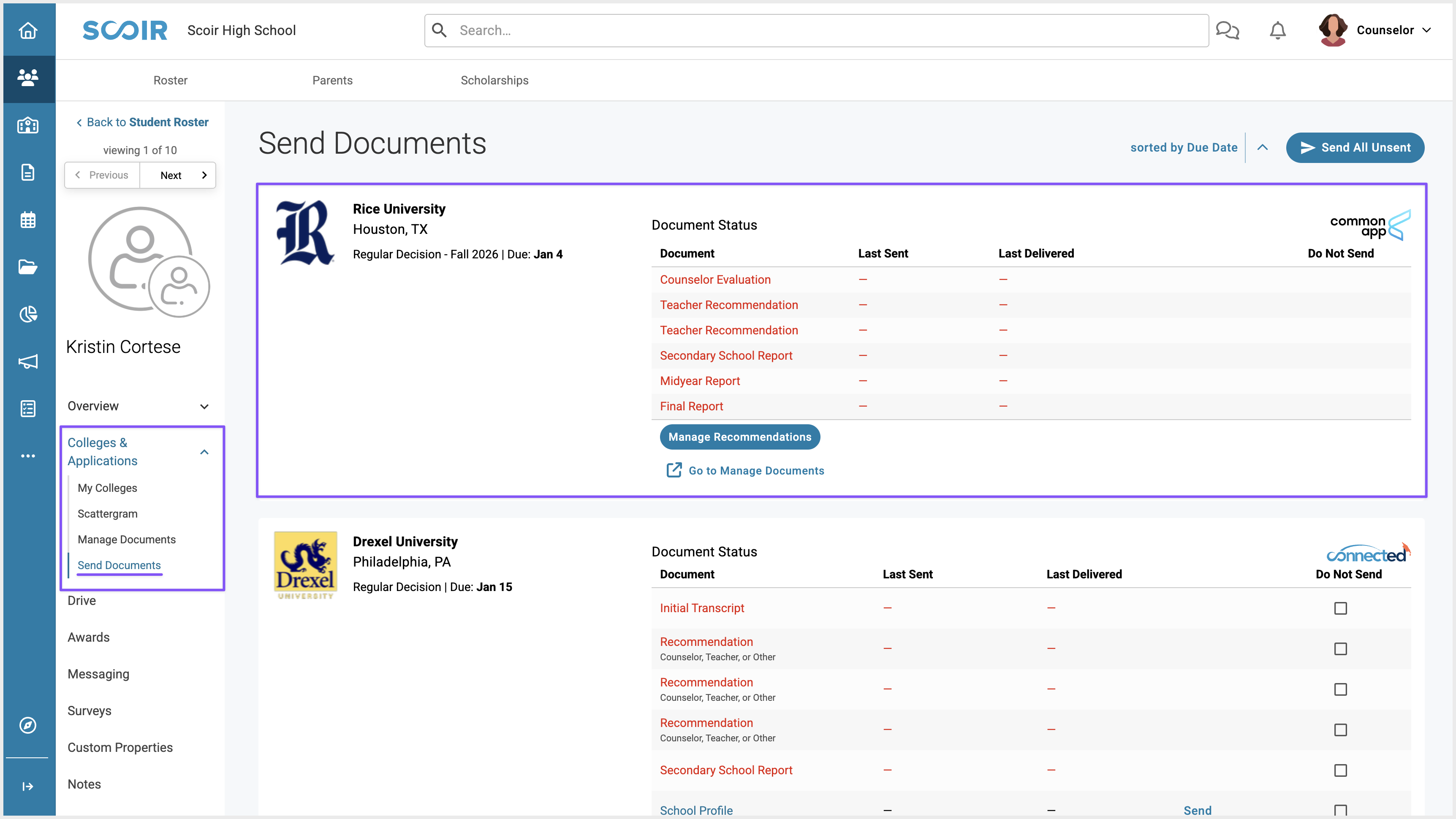
There are two ways to prepare documents, depending on what you're working on:
- Bulk Upload (best for transcripts and senior courses): Head to More > Data Management > Student Data. Upload documents here and they'll automatically appear when you're creating School Reports, Midyear Reports, and Final Reports.
- Individual Preparation: Go to the student's profile > Colleges & Applications > Manage Documents. Here you can create or upload forms specific to that students
Sending Documents
The student does not need to fully submit their application for counselors to send documents to Common App. When you send a Common App document in Scoir, it is routed to Common App, not directly to colleges. Common App will hold the document until the student submits their application to a college. Then, it will be made available to all college they applied to (or later applies to) for downloading.
How It Works
"One-and-done" policy: For Common App applications, each document only needs to be sent once per student. That same document will automatically be sent to all of the student’s other Common App colleges, regardless of their requirements. Meaning, if you send a Midyear report to one common App college, it will be made available for download to all other colleges the student applies to, even if they don’t require it. The one exception is teacher recommendations - those only go to the specific colleges they're assigned to.
Real-time sending: Common App documents are sent in real-time after you click Send (no nightly batching like non–Common App colleges). However, they will only be released to colleges for retrieval once the student submits their application.
Adding colleges later: If a student adds additional Common App colleges after documents have already been sent, Common App will automatically match and deliver the previously submitted documents to those new colleges—no need to resend.
Before You Can Send
Documents can only be sent to Common App after the student has:
- Signed the FERPA Release Authorization in Common App
- Indicated a start term and admission plan for each college they will apply to
Once documents are sent, Common App holds them until the student submits their application(s), then releases the documents to the appropriate college(s).
How to Send
You can send documents for an individual student or in bulk.
For an individual student:
Open the student’s profile, then go to Colleges & Applications > Send Documents to review requirements and send documents. See: For Counselors: Sending application documents for individual students
In bulk:
Go to Applications > Send to send documents for multiple students at once. See: For Counselors: Bulk Sending Application Documents
Tracking Document Status
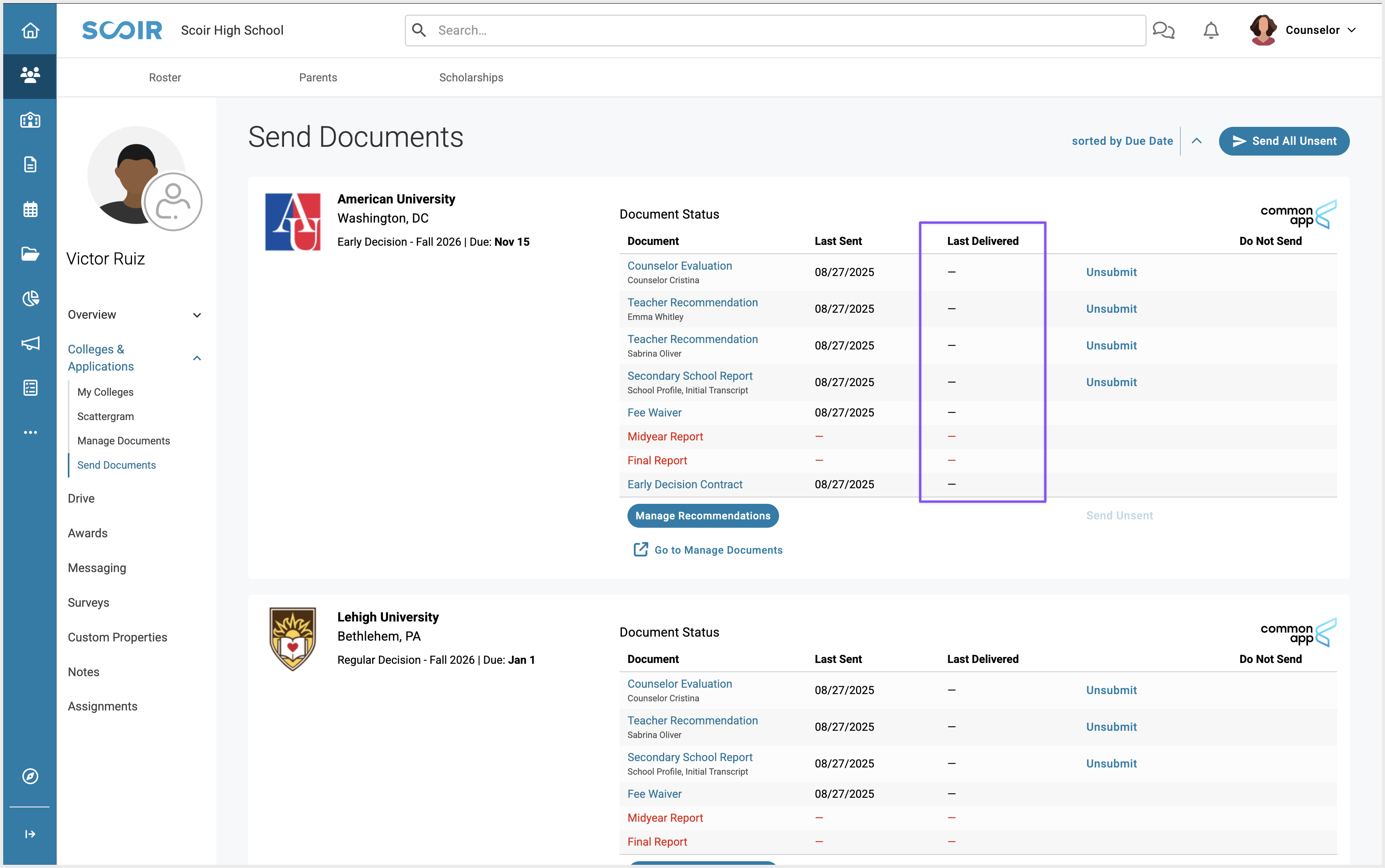
After you send documents, you can track their status from the student’s profile under Colleges & Applications > Send Documents. Two date fields help you understand what’s happening:
- Last Sent: The date the document was sent from Scoir to Common App
- Last Delivered: The date a specific college retrieved the document from Common App (this appears only after the student submits their application)
If Last Delivered is blank, the college hasn’t downloaded the file yet. This may mean the student hasn’t submitted their application, or the college hasn’t pulled documents yet.
What happens to documents if a college’s application method changes?
If the application method switches back to Common App, any previously sent Common App documents reappear and remain marked as sent.
For Common App applications that have already been submitted, documents sent through Common App stay linked to that application, even if the application method is later changed.
Students can also track document status in Scoir and Common, see the student guide for more details.
Unsubmitting Documents
From the student’s Send Documents page, you can unsubmit a document only if it hasn’t been downloaded by any Common App college. Unsubmitting removes the document from all Common App colleges it was sent to.
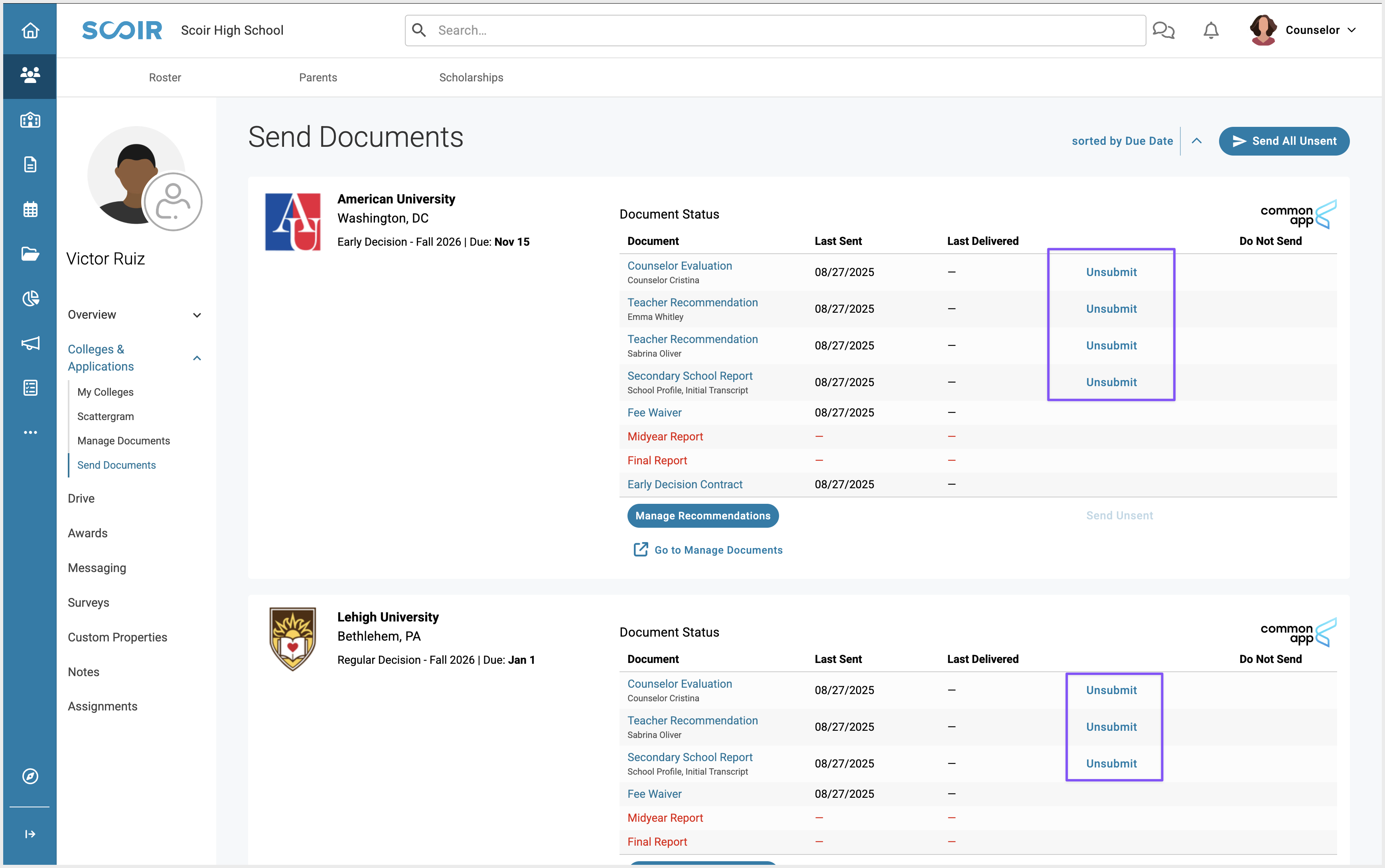
Teacher recommendations are unique in that you’ll have the option to unsubmit the document for just one school or for all Common App colleges. (This option is only available for teacher recs.)
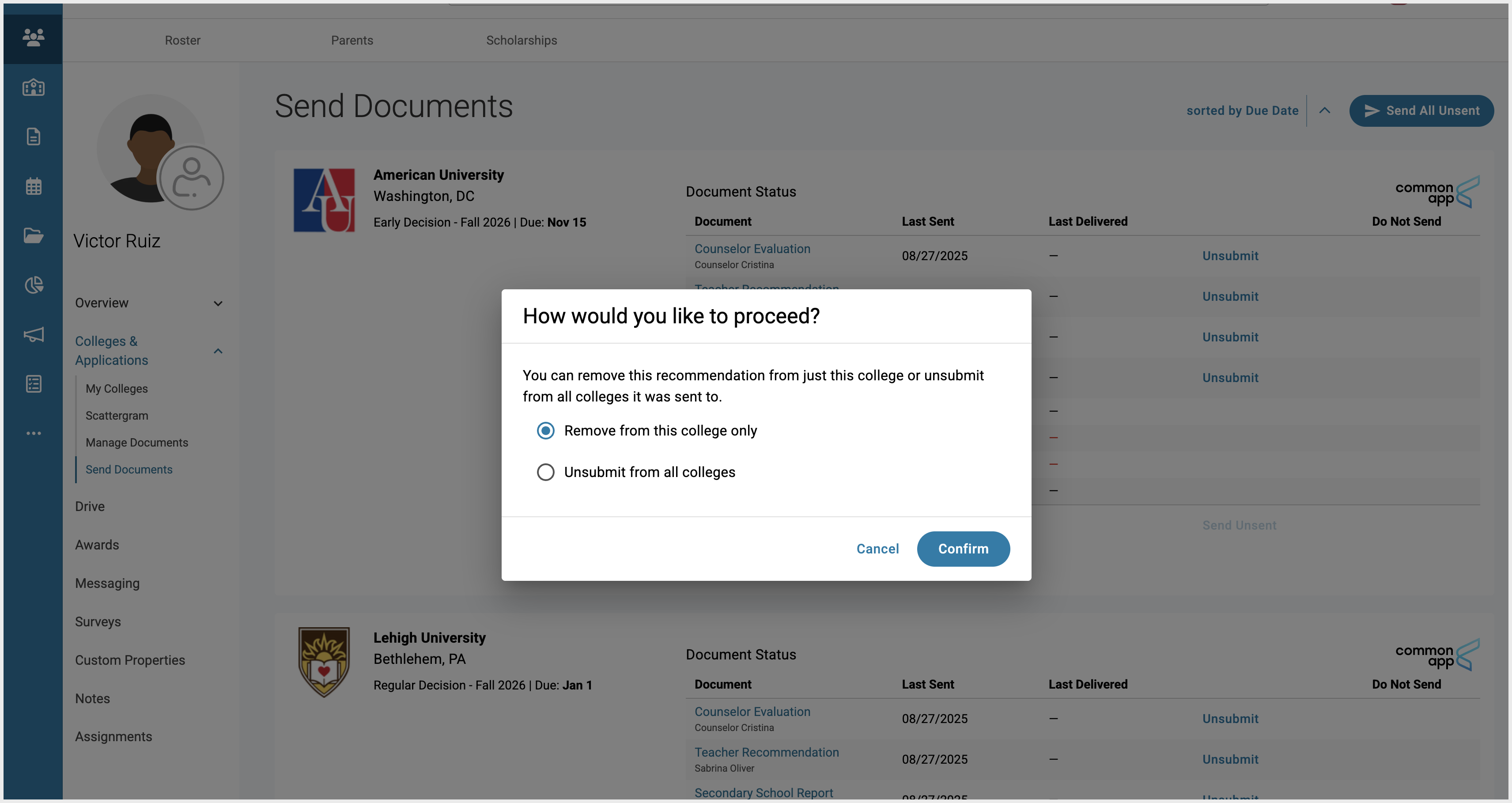
Once unsubmitted, you can delete the document, make changes, or upload a new version—then simply resend when ready.
If a document shows a date in Last Delivered, it has already been downloaded and cannot be unsubmitted. In that case, send corrections as an Optional Report.
Sending Optional Documents
Sometimes you may want to send a document that isn’t specifically required by a college, such as a counselor evaluation or midyear report (as long as Common App accepts it).
From the student’s Send Documents page, click Add Documents to include the document.
- If at least one Common App college requires the document, adding it automatically includes it in all of the student’s Common App application packets.
- If no Common App colleges require the document, add it to one college and it will automatically apply to all of the student’s Common App colleges.
Keep in mind that for Common App colleges, adding, removing, or sending these documents applies to all of the student’s Common App colleges. Teacher recommendations must follow each college’s limits, and extra recommendations cannot be sent beyond what a college allows.
Correcting Error After Download
According to Common App, once a form has been downloaded by a college, it cannot be updated or replaced in their system. If an error needs to be corrected, counselors should reach out directly to the college for guidance on how to provide an updated document.
Another option would be for counselors to use Optional Reports in Scoir to submit updated grades or transcripts, or to correct information from a previously submitted recommendation. Keep in mind that each Optional Report can only be submitted once per application season.
Troubleshooting
Did a student connect the wrong Common App account?
When the new account is connected, any colleges that were previously syncing from the wrong account but are not added on the correct account will automatically move back to Following in Scoir.
If any application documents were already sent using the wrong Common App account, our Support Team may need to evaluate the situation further. They’ll let you know about any potential impacts and advise on next steps before disconnecting the account.
Did a Common App college stop syncing?
Avoid moving a college tile in Scoir if the student still intends to apply. Doing so will undo the sync. If the student is truly no longer applying, the correct action is to remove that college from their My Colleges list in Common App.
If a sync has already stopped in error, please contact Scoir Support so we can re-establish the connection. When reaching out, include:
• The student’s name, email, and CAID
• The affected college(s)
• What you expected to see in Scoir vs. what is displaying now
Is the FERPA status missing or not showing?
If the status is not showing as expected, the connection will need to be re-established by our support team. Please contact Scoir Support and include:
• The student’s name, email, and CAID
• What you expected to see in Scoir vs. what is displaying now
Are no document requirements appearing?
• Connected their Common App account to Scoir
• Completed the FERPA Release Authorixation in Common App
• And selected their preferred start term and admission plan for each college they will apply to
Without all three, requirements won’t populate. Share the Common App Student Guide for steps on how to do this.
How can I preview a student’s Common App application now that our school uses the Scoir + Common App integration?
Learn more about the Advisor role in these Common App help articles:
What is an Advisor?
Do I need to invite my school counselor as an Advisor?
How can my Advisor preview my application?
Are documents stuck in "Pending"?
• The PDF file is too large. Documents must be under 2MB to send successfully.
• The PDF file is encrypted or password-protected. These types of PDFs are not supported (for example, some transcripts uploaded within School Reports).
Suggested fixes:
1. Check the file size and confirm it’s under 2MB.
2. Check if the file is encrypted or password protected by opening its document properties or security settings, which will often show a security method or a "Secured" status. Or, try to perform restricted actions like printing or editing, or look for a password prompt when opening the file.
3. If the file is encrypted or password-protected, open it using the program you normally use to view PDFs (like Adobe Acrobat).
4. Use Save As, Print to PDF, or Export as PDF to create a new, unencrypted copy.
5. Upload the new version in Scoir.
6. If the encrypted file was included in a School Report (like an SSR), delete the affected report or document bundle and recreate it attaching the new, non-encrypted version.
7. Once the corrected file has been uploaded, reach out to Scoir Support. Our team will help reset the affected document(s).
Additional Resources & Training
Now that you've learned how the Scoir & Common App integration works, here are a few additional resources to help. The integration is also reflected in the Scoir mobile app, so students can see their synced Common App colleges and details there as well.
Student Getting Started Guide | Share this student guide for an overview of where students should take action and what to expect when using Scoir with Common App. |
Scoir + Common App FAQ | See specific questions that counselors have asked and learn more about how the integration works. |
Scoir + Common App Training | Watch a full walkthrough of the integration. |