Apply with Scoir
Applicant resources
For Students: How to Apply Coalition with Scoir
Transfer & Non-Scoir Students: How many recommendations do I need?
Transfer & Non-Scoir Students: Requesting transcripts, application documents, & recommendations
Transfer & Non-Scoir Students: My recommendation was submitted but the college portal says it’s not received
Transfer & Non-Scoir Students: I added my recommender as "Other" and can't assign their letter to a college
Transfer & Non-Scoir Students: My recommender or school official can’t access their submission link or didn't get an email
Colleges resources
For Colleges: Scoir application activation checklist
For Colleges: Configuring your application
For Colleges: Application activation
For Colleges: Importing School Reference IDs
For Colleges: Testing your application
Recommender & supporter resources
Common App™ in Scoir
For Counselors & School Staff
Common App in Scoir: Start Here for Counselors
Getting Your School Ready for the Common App Integration
Sending Documents to Common App: How It Works
Managing Fee Waivers for Common App
Managing Common App Early Decision (ED) Agreements
Creating Midyear Reports for Common App
Creating Optional Reports for Common App
Creating Final Reports for Common App
Sending Documents for Alumni with the Common App Integration
For Students
Common App in Scoir: Start Here for Students
Connecting Common App & Scoir
How to Sign your FERPA in Common App
Requesting Fee Waivers for Common App
Completing an Early Decision (ED) Agreement for Common App
Using Scoir & Common App if Your School Doesn't Connect Them
Troubleshooting Common App Account Linking
Troubleshooting FERPA Status in Scoir
What Syncs Between Common App & Scoir
Changing a College’s Application Method
Common App System Refresh: What to Expect in Scoir
Counselors
Getting started
Using Scoir: A quick start guide for middle school counselors
For Counselors: Managing your account
Counselor Dashboard Overview
For Counselors/Teachers: Changing your email address
For Counselors: Creating a Demo Student Account
Adding & managing students
For Counselors: Student roster overview
For Counselors: Add a new student
For Counselors: Student registration process
For Counselors: Labels overview
For Counselors: My student has a Scoir account but I can't see their data
For Counselors: Edit student profiles
For Counselors: Student transferring high schools
For Counselors: How to Find and Restore Archived Students
Counselors: Recording Scholarships for Students
For Counselors: Create and manage Saved Views
Managing parents
Why can't parents see Scattergrams, Surveys, and other Scoir features?
For Counselors: Using the Parent Roster
Counselors: Why can’t I add a parent to a student’s account?
College & career planning
For Counselors: Viewing students’ career interests
Counselors: PrinciplesYou character assessment overview
For Counselors: Searching and filtering colleges
For Counselors: Suggesting colleges
For Counselors: Add a college to a student's college list
For Counselors: Manage colleges on behalf of a student
For Counselors: Managing and using Scattergrams
For Counselors: Understanding List Scores
For Counselors: A guide to Predictive Chances with Scoir AI
For Counselors: Guide to Acceptance Likelihood and Intelligent Match
For Counselors: Set student outcomes and post-graduate plans
For Counselors: Applications Overview
For Counselors: Admission Intelligence FAQ
For Counselors: Adding a college that isn't showing up in Scoir
Document management
School Drive & student Drives
Choosing the right way to share resources with students
For Counselors: Using School Drive
For Counselors: View and manage your student's Drive
For Counselors: Bulk add files & links to students' Drives
Document preparation & uploading
Counselors: Create a Secondary School Report for Individual Students
Counselors: Midyear Reports and Transcripts
For Counselors: Final Reports and Transcripts
For Counselors: Grade Reports (Individual)
For Counselors: Application Fee Waivers
For Counselors: Digitally Signing Early Decision Contracts/Agreements
For Counselors: A Guide to Letters of Recommendation in Scoir
Counselors: Complete a counselor evaluation/recommendation
Counselors: Checking the status of teacher recommendation requests
Counselors: Ranking a Student's Recommendations
Assigning Recommendations to Colleges
Counselors: Uploading recommendations on Behalf of Others
For Counselors: Managing FERPA on behalf of a student
Understanding FERPA - Frequently asked questions
For Counselors: Manage Documents
Document sending
Counselors: Bulk Sending Application Documents
For Counselors: Sending Application Documents for Individual Students
For Counselors: Understanding what "Complete Packets Ready to Send" means
For Counselors: Understanding the "Needs Attention" document status
For Counselors: Cancel sent documents - the send docs "undo" button 😮
For Counselors: Resending an updated transcript after it was already sent
For Counselors: Why aren't documents appearing in the list to be sent to colleges?
Tracking & troubleshooting
Plans, Tasks, and Forms
For Counselors: Creating and Managing Assignment Plans
Counselors: Creating and Assigning Forms
Counselors: Creating and Assigning Tasks
For Counselors: Creating, publishing, and editing Surveys
For Counselors: Viewing Survey results
For Counselors: Creating brag sheets in Scoir
Counselors: Scoir-Created Plans Playbook
Uploading test scores & other data
Test Score Imports: ACT score imports
Test Score Imports: ACT and PreACT scores via rapid manual entry
Uploading College Board test scores
For Counselors: Importing Custom Properties
Bulk add/update Grade Report
Bulk add/update Senior Courses
Bulk add/update Student GPAs
Bulk add/update Transcripts
Reporting
For Counselors: Running reports on student data
For Counselors: Custom Properties and Property Groups
Communication & notifications
For Counselors: Messaging students & parents in Scoir
For Counselors: The Email Center
For Counselors: Sending and scheduling emails
For Counselors: Emailing users using the advanced email integration
For Counselors: Scoir Library & Email Subscription management
For Counselors: What notifications will students receive from Scoir?
For Counselors: Notifications & alerts
Calendar & scheduling
Using the calendar
For Counselors: Calendar overview
For Counselors: Linking your Scoir calendar to an external calendar
Visits & office hours
For Counselors: Scheduling in-person visits & availability
For Counselors: Scheduling virtual visits
For Counselors: Scheduling visits for non-college organizations
For Counselors: Scheduling multiple college visits within the same time slot
For Counselors: Students' notification of college visits
For Counselors: Understanding Scoir RSVP dates
For Counselors: Scheduling office hours
For Counselors: Office hours from the student perspective
For Counselors: Edit or delete a visit
For Counselors: Register and Unregister Students for Visits and Office Hours
Resources & checklists
Students
Account setup & management
Students: Getting Started with Your Scoir Dashboard
For Students: Creating an account when invited by your high school
For Students: Creating an account on your own (non-Scoir high school student account)
For Students: How to tell if you are linked to a high school or not
For Students: Invite a parent or guardian to Scoir
For Students: What to do if you have multiple accounts
Students: Link your existing Scoir account to a high school
Students: How to Add an Alternate Email or Change Your Primary Email
For Students: Delete your account
Build your student profile
For Students: Updating Your Personal Information in Scoir
For Students: First generation students
Students: How to Access and Sign Your FERPA in Scoir
For Students: Edit Your Academic Info (School, GPA, and Test Scores)
For Students: Record Your Activities and Achievements
For Students: Create and Export a Resume in Scoir
For Students: Using your Drive
Explore careers
For Students: Taking a career interest assessment
For Students: Taking the PrinciplesYou character assessment
For Students: Discover careers
For Students: Managing careers in your profile
For Students & Parents: Access College Guidance Network with single sign-on (SSO)
College planning
Explore colleges
For Students: Setting your college preferences
For Students: Student interest categories
For Students: Discover colleges
For Students: College profiles
For Students: Comparing colleges
For Students: Viewing Scattergrams
For Students: Discover Events
For Students: Discover Programs
Build & manage your college list
For Students: Understanding what it means to follow a college in Scoir
For Students: My Colleges
For Students: View your college list in a table layout
For Students & Parents: Create and Manage Views
The Balanced List Score
For Students: View & simulate your Predictive Chances for college admissions
For Students: Updating outcomes and post graduate plans
Application documents & resources
For Students: Understanding Test Optional, Test Free & Test Required SAT/ACT Scores
Students: Requesting Application Fee Waivers in Scoir
For Students: Early Decision Contracts in Scoir
For Scoir connected students: Requesting transcripts
Students: Requesting Teacher Recommendations if Your School Uses Scoir
For Students: Checklist for ensuring application document delivery
For Students: How to Request and Rank Recommendations
Assignments
Office hours & visits
Students: Registering for Office Hours with Your Counselor
For Students: Registering for college visits
Scoir mobile app
College Admissions
Staff setup & management
For Colleges: Add & invite admissions staff
For Colleges: Admissions Officer Roles & Permissions
For Colleges: Remove admissions staff
Integrating Slate with Scoir
Introduction: Integrating Slate with Scoir
Step 1: Prepare Slate to Receive Data and Documents from Scoir
Step 2: Connect Slate and Scoir
Step 3: Map Scoir Student Data and Documents in Slate
Troubleshooting Slate integration with Scoir
Colleges: Scoir Audience Integration with Slate
Applications & documents
Application rounds & requirements
Understanding Application Rounds in Scoir
Creating Application Document Requirements
Creating an Application Deadline
For Colleges: Editing, copying, and deleting Application Requirements
Receiving documents
For Colleges: Scoir Index File
For Colleges: Set up a Manual SFTP Connection with Scoir
For Colleges: Troubleshoot configuration of SFTP integration with Scoir
For Colleges: Slate Mapping
For Colleges: Supported Document Types
For Non-Slate Colleges: Configuring File Preferences
For Colleges: Downloading & reviewing documents
For Colleges: Grade Reports
For Colleges: The Scoir CSV/Manifest file
For Colleges: How to access student application documents in Scoir
Managing college profile content
Colleges: Premium Presence Overview
Colleges: How to Use Posts, Events, and Programs in Premium Presence
For Colleges: Events
For Colleges: Guidelines for college profile header photos
Student & guardian messaging
Colleges: Outreach Messaging Overview
Colleges: Sending One-Time Outreach Messages
Colleges: Setting Up Automated Outreach Messages
Find high schools & schedule visits
For Colleges: Explore High Schools & Schedule Visits with Visits+
For Colleges: Getting Started with Visits+ Premium
Colleges: Managing Your Institution's High School Visits
For Colleges: Linking to an external calendar
Student interest & insights
Colleges: Explore your Admissions Insights Dashboard
For Colleges: Applicant Insights & Management
For Colleges: Student Handraisers Data Access and Delivery
For Colleges: Understanding Scoir Data in Your CRM
For Colleges: Parent Handraisers Data Access and Delivery
Rollover Reset: Your Scoir Checklist
District Administrators
For District Admins: Logging into your Network account
For District Admins: Getting started with a Network account
For District Admins: Adding and managing users in your Network account
For District Admins: Network roles and permissions
For District Admins: District communications
For District Admins: Setting up and enabling Advanced Email features
School Administrators
School account setup: Data requirements
Grades 9-12
Grades 9-12: Scoir data gathering instructions (Naviance & SIS for students, parents, and teachers)
Grades 9-12: Scoir data gathering instructions (Naviance, ClassLink & SIS for parents)
Grades 9-12: Scoir data gathering instructions (Naviance, Clever & SIS for parents)
Grades 9-12: Scoir data gathering instructions (ClassLink & SIS for parents)
Grades 9-12: Scoir data gathering instructions (Clever & SIS for parents)
Grades 9-12: Exporting data from your Student Information System (SIS)
Grades 6-8
Grades 6-8: Exporting data from your Student Information System (SIS)
Grades 6-8: Scoir data gathering instructions for account setup (Clever)
Grades 6-8: Scoir data gathering instructions for account setup (ClassLink)
Grades 6-12
Grades 6-12: Scoir data gathering instructions (ClassLink & SIS for parents)
Grades 6-12: Scoir data gathering instructions (Clever & SIS for parents)
Grades 6-12: Scoir data gathering instructions (Naviance, ClassLink & SIS for parents)
Grades 6-12: Scoir data gathering instructions (Naviance & SIS for students, parents, and teachers)
Grades 6-12: Exporting data from your Student Information System (SIS)
Grades 6-12: Scoir data gathering instructions (Naviance, Clever & SIS for parents)
System-Specific Instructions
School account settings
School Settings Overview
Enable application materials (Documents)
Setting up and enabling Advanced Email
Ensuring Scoir Emails are Delivered
Request a GPA scale change
Set Up Your School Reports Template
Managing Student Transcript Settings
Configuring FERPA Waiver & Release Forms
Configuring Recommendation Settings
School logo and template for teacher recommendations
Student self-reporting for GPA and test scores
Pending Acknowledgement
Predictive Chances and Scattergram display settings
For Counselors: Overriding a college's application document requirements
Can counselors control who sees Balanced List scores?
Can counselors adjust Balanced List minimums?
Can Balanced List Scores be based on just colleges marked as Applying and Applied?
User setup & roles
Users page overview
Adding and removing counselors and other staff to Scoir
Inviting faculty and staff
Understanding and assigning roles and permissions
Inviting Students
Assigning counselors to students
Inviting Parents/Guardians to Join Scoir
Inform students, families, and staff about Scoir with these templates
For Counselors & Staff: Signing In to Scoir & Multi-Factor Authentication
Data uploads
Parents
Account setup & management
Parents/Guardians: Managing your email notifications
For Parents/Guardians: Changing your email address
For Parents & Guardians: Getting to Know Your Dashboard
For Parents: How to create and link your account to your student and their school
For Parents/Guardians: Change your Scoir password
Supporting your students
For Parents/Guardians: View your student’s college list
For Parents: View your student’s college list in a table layout
For Parents/Guardians: Suggesting colleges and sharing your contact information
For Parents/Guardians: Unsuggesting a college for my student
For Parents/Guardians: View and simulate your student’s Predictive Chances
For Parents: View and manage your student’s Drive
For Parents/Guardians: Digitally signing your student's early decision contract
Parents & Guardians: How to Sign the FERPA Release in Scoir
Searching for colleges
For Parents/Guardians: Search and Suggest Colleges to Your Student
For Parents/Guardians: Viewing Scattergrams
For Parents/Guardians: Comparing colleges
For Parents/Guardians: Financial information & estimates
For Parents/Guardians: Discover Programs
Assignments
Scoir mobile app
Teachers
Product Updates
- Browse by topic
- College Admissions
- Student interest & insights
- For Colleges: Understanding Scoir Data in Your CRM
For Colleges: Understanding Scoir Data in Your CRM

This doc is a working reference for how Scoir data shows up in your own CRM. It's meant for anyone on your team responsible for managing or reporting on Scoir data in your system, whether you're setting things up for the first time or troubleshooting down the line.
Scoir ID
What it is
The Scoir ID is a unique identifier assigned to each Scoir student record. A student’s Scoir ID is included as a source data field in all Scoir-related imports: Materials, Scoir Audience Integration, Handraisers, and the Coalition Application.
Connecting it in your CRM
Scoir ID will need to be created as a custom, person-scoped field that is set to unique for merging. Be sure to map the incoming Scoir ID source field to your person-scoped Scoir ID field in all Scoir-related imports to ensure proper record matching.
Using it in reporting
The Scoir ID on their record is the most straightforward way to identify Scoir students in your CRM. It lets you know the student came into your system as part of a Scoir import at some point in their journey.
This method alone may mean you're missing some records. If their high school opts to send application materials via Common App, Scoir students who apply via Common App will not have a Scoir ID if you don't have other Scoir imports enabled.
Activating the Scoir Audience Integration, and Scoir Handraisers if included in your paid Scoir partner plan, ensures you’re assigning a Scoir ID to every Scoir student record in your system where interest in your institution on Scoir exists.
Scoir Audience Integration vs. Scoir Handraisers
Scoir offers college partners two distinct paths to import Scoir records into your CRM. Each serves a different purpose and delivers different value. Together, they deliver the full picture of Scoir engagement.
Handraisers are opt-in leads. A student follows your college on Scoir and explicitly agrees to share their contact information with you. You receive a known, ready-to-contact record.
Scoir Audience Integration is interest visibility. It brings all Scoir interest signals — not just opted-in ones — into your CRM in real time, so you can see who is engaging with your college even before they inquire.
Handraisers | Scoir Audience Integration | |
What it is | Traditional opt-in lead generation. Compatible with any CRM. | Real-time interest signals, including students who haven't opted in. Only open to colleges using Slate. |
Student action | Follows your college on Scoir AND explicity opts in to share contact info. | Follows your college on Scoir; no opt-in required. |
What lands in your CRM | A known record with the student's name and contact information. | A known record if the student is already in your CRM, or an unknown/stealth record (PII withheld) if they aren't yet on your radar. |
Primary value | Delivers ready-to-contact, high-intent leads. | Delivers visibility into Scoir-driven interest and accurate source attribution, plus a target list of students to convert on Scoir you're not reaching through other campaigns. |
Because the Audience Integration includes students who haven't yet opted in to share their contact info with you, it will create an unknown (stealth) record in Slate if it can't match the student to an existing record in your system. This protects the student's privacy until they handraise or otherwise identify themselves to your college through Scoir or another source.
Scoir Audience Integration — why the unknown records matter
It's a fair reaction to look at an unknown record and think, "I can't do anything with these." But that view misses two things the integration is actually built to solve:
Complete, accurate attribution. Without the integration, you only see the interest that eventually converts into an inquiry. With it, a student's date of first follow on Scoir becomes their date of record creation in Slate. That gives you accurate first-source attribution and a true picture of Scoir's impact when you evaluate end-of-year outcomes.
A targeted conversion list. Unknown records aren't dead ends — they're a segment. These are students actively engaging with your college on Scoir who you are not reaching through any other channel. The integration lets you isolate that group and use Scoir to convert them into known, contactable records.
Identifying Stealth Records and Tracking Stealth-to-Known Record Conversion
Every college with the Scoir Audience Integration enabled has a population of stealth/unknown records in their CRM — students actively expressing interest in your institution on Scoir who aren't yet known to you outside of the platform.
Over time, as you nurture this population on Scoir, you should expect to see stealth records convert to known records.
Tracking that conversion isn't just a nice-to-have — it's a direct measure of whether your outreach to this segment is working, and it's worth building into your regular reporting alongside your other conversion metrics.
Identifying stealth records
- The “Scoir Stealth Record” filter includes stealth/unknown records by looking for the existence of “unknown” in the person record name field.
- The “Not Scoir Stealth Record” filter excludes stealth/unknown records. Using this filter can be useful for actionable queries, like call lists, where you wouldn’t want these records to return because you wouldn’t be able to take the intended action on them.
Generally speaking, stealth records shouldn’t get in the way of your day-to-day work or clutter your system.
Tracking conversion
There are different ways to look at conversion depending on what you want to measure:
- Overall conversion — track the total volume of stealth-to-known conversions across your Scoir Audience population over time.
- Funnel conversion by origin source — compare conversion rates across all your origin sources side by side, with Scoir Audience as one of several.
In both cases, start by isolating records with an Origin Source of Scoir Audience. This is what tells you a record was created by the Scoir Audience import and not some other source. Records created by the Scoir Audience import were unknown to you prior to the import and therefore created as stealth/unknown.
Overall Conversion
For a report focused on overall conversion, you can then look at records that now meet the “Not Scoir Stealth Record” filter criteria and calculate that conversion rate.
“Total Stealth” is looking at students with an Origin Source of Scoir Audience. This is set at the base, by clicking Edit and then filtering on the Origin Source Summary.
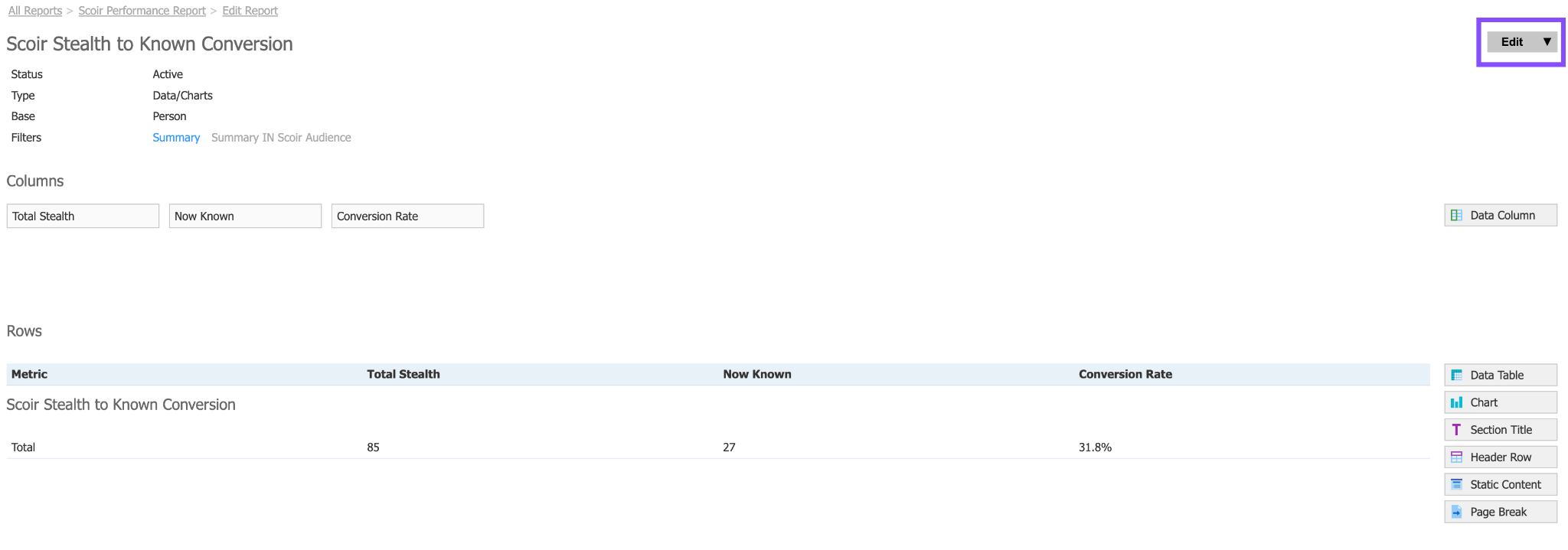
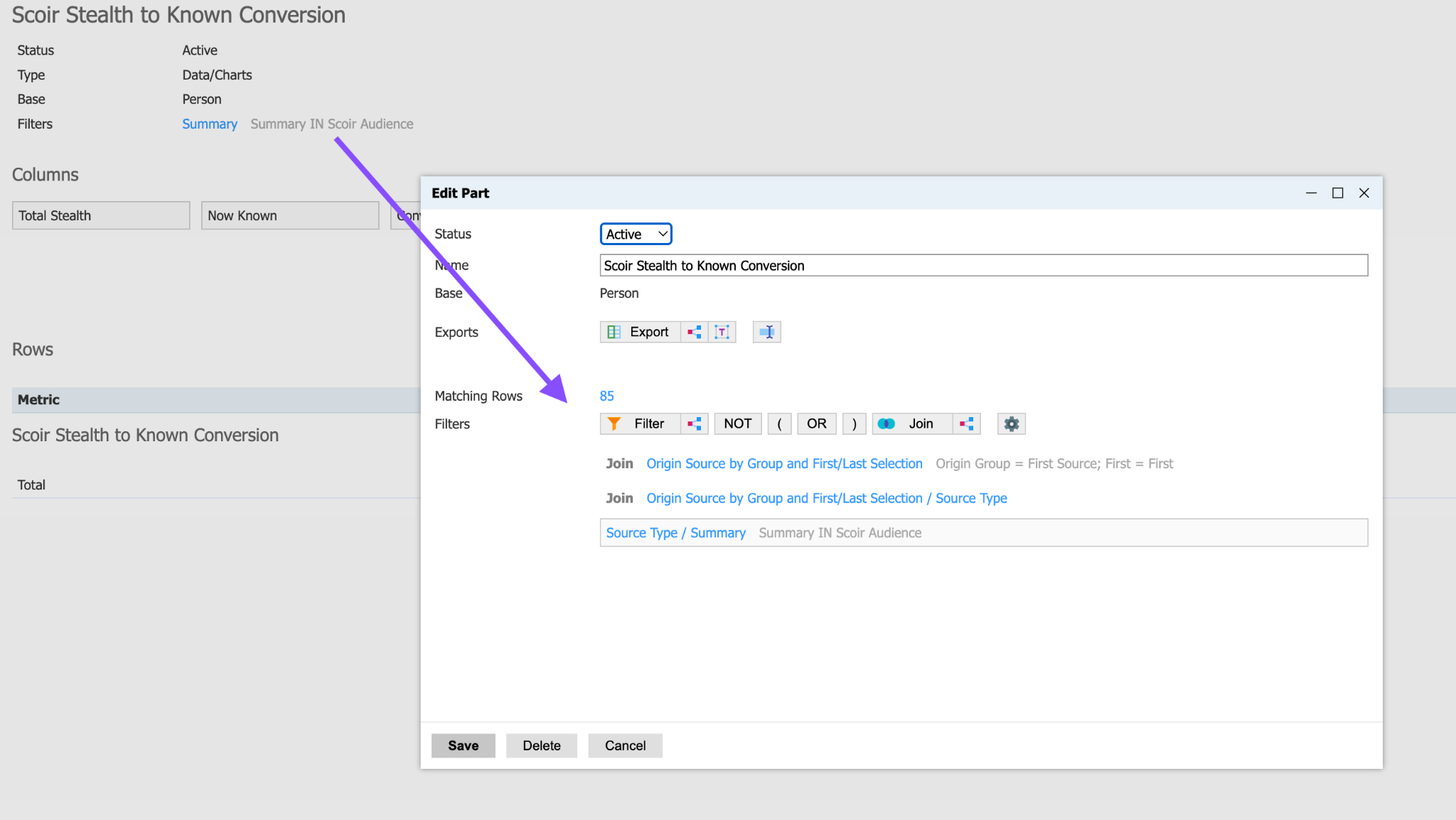
“Now Known” uses the “Not Scoir Stealth Record” filter available in the Scoir Query Library. This filter, along with the base filter of Scoir Audience Origin Source, will pull all records in your system that have a Scoir Audience Origin Source but are no longer stealth/unknown.
%
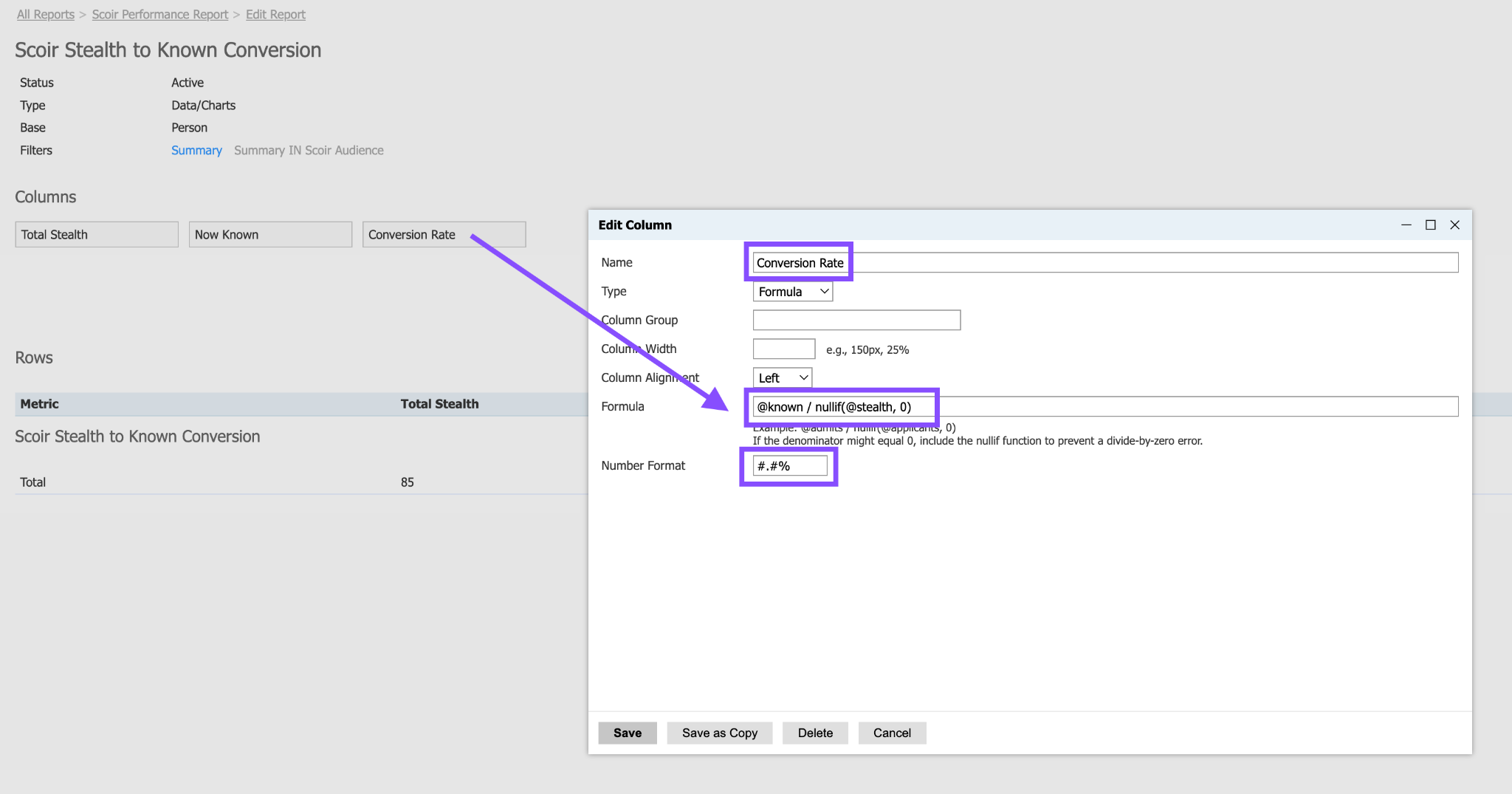
“Conversion Rate” is a formula that divides the number of now known records by the total number of records that were originally stealth.
Funnel Conversion by Origin Source
You can also track conversion rate as part of your regular funnel reporting — both for stealth records specifically and for Scoir records as a whole.
- To isolate stealth records, use the same approach as above: look for records with an Origin Source of Scoir Audience.
- To look at all Scoir records in a funnel report, use the existence of a Scoir ID as your identifier, since every Scoir-related import assigns one.
You can also isolate funnel conversion rate specifically for Scoir Handraisers, though the approach depends on what your report is measuring. If your report looks at records by source, filter to records with an Origin Source of Scoir Handraisers. If it's treating Scoir as a touchpoint rather than a source, filter instead on the existence of a Scoir Handraisers import — to find those records, join from the person base to Source Records > Source > Source Format > Source Format Name.
UTM Parameters
UTM parameters are small tags added to the end of a URL that track where a visitor came from. They don't change where the link goes — they just attach extra information (like the source, medium, and campaign) that gets picked up by analytics tools such as Google Analytics or your CRM. That's what lets you see, for example, that a click came from an email campaign versus a social post versus a partner site, rather than just showing up as generic website traffic.
What UTMs Scoir applies
Scoir applies a consistent set of UTM parameters across links in your content so you can trace traffic back to the exact source. All links with Scoir-standard UTM parameters share utm_source=scoir. From there, utm_medium identifies the type of touchpoint (content card, message, or profile website link), and utm_campaign identifies the specific content or audience segment within that touchpoint. For example, an Admissions content card carries utm_medium=content_card and utm_campaign=admissions, while a message sent to parents carries utm_medium=message and utm_campaign=parents.
Content | Audience or Type | UTM Source | UTM Medium | UTM Campaign |
Content Card | Overview | scoir | content_card | overview |
Content Card | Academics | scoir | content_card | academics |
Content Card | Admissions | scoir | content_card | admissions |
Content Card | Cost & Aid | scoir | content_card | cost_aid |
Content Card | Student Life | scoir | content_card | student_life |
Content Card | Event | scoir | content_card | event |
Content Card | Program | scoir | content_card | program |
Message | Students | scoir | message | students |
Message | Parents | scoir | message | parents |
Message | Student Matches | scoir | message | student_matches |
Message | Parent Matches | scoir | message | parent_matches |
Website Link | Overview | scoir | profile | overview |
Where Scoir applies them
Scoir applies these UTM parameters to any link a user might click, across three places: content cards (Posts, Events, and Programs), outreach messages (sent to Students, Parents, Student Matches, or Parent Matches), and the Website Link on your college's Scoir profile page. Whenever a user clicks through, the UTM parameters travel with them as query string values appended to your site's URL — which is what allows Google Analytics, Slate/your CRM, or any other analytics tool to identify that the visit originated from Scoir, and exactly which touchpoint drove it.
How to use them
In Google Analytics (or your web analytics platform)
Since every Scoir-driven link carries utm_source=scoir, you can isolate all Scoir traffic to your site by filtering Source/Medium reports for scoir. From there, the Medium and Campaign values let you break that traffic down further — e.g. compare how much traffic comes from content cards vs. messages, or see which content type (Admissions, Cost & Aid, Student Life, etc.) or audience (Students vs. Parents) is driving the most engagement. This is useful for understanding which Scoir touchpoints are actually pulling students back to your site, not just which ones you’re sending.
In Slate
Slate automatically captures UTM parameters on inbound web traffic. Because our UTM structure is consistent (scoir as source, then medium/campaign identifying the touchpoint), you can build saved queries or reports in Slate that isolate Scoir-originated engagement by touchpoint type, the same way you would in GA, using the Configurable Joins Ping query base. Ping Sources also provides a straightforward summary of marketing campaign data based on UTM codes. Learn more about UTM Parameters and Ping Sources in Slate.
Tracking Source Attribution & Scoir Engagement
Scoir first source
For Slate schools, accurately capturing Scoir first source starts with setting up Origin Sources for both import formats — Scoir Audience and Scoir Handraisers — so every record coming in through either path is tagged correctly at the point of entry. When setting up these Origin Sources, the Source Type will be Source Format and the Source will be Scoir Audience for one and Scoir Handraisers for the other.
Schools with the Scoir Audience Integration also benefit from a Scoir-generated insights report that compares when a student’s record was created in Slate to when they first followed you on Scoir, surfacing first source accuracy that Origin Sources can't immediately capture. That comparison becomes less necessary over time — as the date of first follow will be the date of record creation for stealth records right in Slate, once the integration has been running for at least a full cycle, first source reporting via Origin Sources will be accurate on its own. Until then, the Scoir-generated report is the more reliable source for first source data.
For schools not on Slate: the same principle applies no matter what CRM you're using. Make sure whatever source/origin field your system offers is being set up to distinguish Scoir-imported records at the point of entry. Without that, you lose the ability to report back on where a record actually came from, which makes it much harder to show the true impact Scoir is having on your funnel come renewal or budget conversations.
Scoir engagement
The clearest window into Scoir engagement within your own CRM is through UTM parameters, as covered above. They attribute every click back to the exact touchpoint that drove it, whether that's a content card, a message, or your profile's website link. For a fuller view of engagement — follows, message opens, content views — Scoir's own platform reporting is the best place to look. Within your CRM, UTM parameters are what you'll want to build your reporting around.